UI Map — every button in CodeNow
A complete tour of the IDE. Each region is documented top-to-bottom with screenshot, button list, keyboard shortcuts, and what each action calls under the hood.
Screenshots: Image placeholders below reference files in
public/screenshots/. Drop a PNG with the matching filename and the image renders automatically — no markup changes needed. See the screenshots README for the full list.
The layout at a glance
┌─ Topbar ──────────────────────────────────────────────────────────┐
│ [+] [Project A] [Project B] [Project C]      [Developer|Business] │
├──────┬────────────────────────────────────┬──────────────────────┤
│      │                                    │                      │
│ Side │          Editor (Monaco)           │    Right rail        │
│ tabs │                                    │   (collapsible)      │
│ 5x   │                                    │                      │
│      ├────────────────────────────────────┴──────────────────────┤
│      │  Bottom panel: Terminal · Claude Code · Output · Debug    │
│      │                                                            │
├──────┴────────────────────────────────────────────────────────────┤
│  Status bar:  ⚠ 0  Format · Format-on-save · Autofix · Theme · Knowledge · Migrate · Share │
└────────────────────────────────────────────────────────────────────┘
1. Topbar

The strip across the top of the window. From left to right:
| Element | What it does | Source |
|---|---|---|
| + button | Opens native folder picker → adds a new project tab | src/main.js IPC pick-folder |
| Project tabs | One tab per opened project. Click to switch (or Cmd+1–Cmd+9). Right-click for close/rename/color | switchProject() |
| Developer / Business mode toggle | Switches the entire sidebar between dev tools (Files/Connections/Extensions/Git/Agents) and business tools (Catalog/Skillify/Guardrails/Workforce/Output) | switchMode('developer'|'business') |
Multi-project tabs are CodeNow’s core differentiator. Every project lives in one window — switch with Cmd+1/Cmd+2/etc. No separate Electron processes, no separate workspaces. State persists per project: terminal sessions, AI model choice, MCP connections.
2. Left sidebar — Developer mode
Five tabs, top to bottom. Click any tab icon to open that panel.
2a. Files
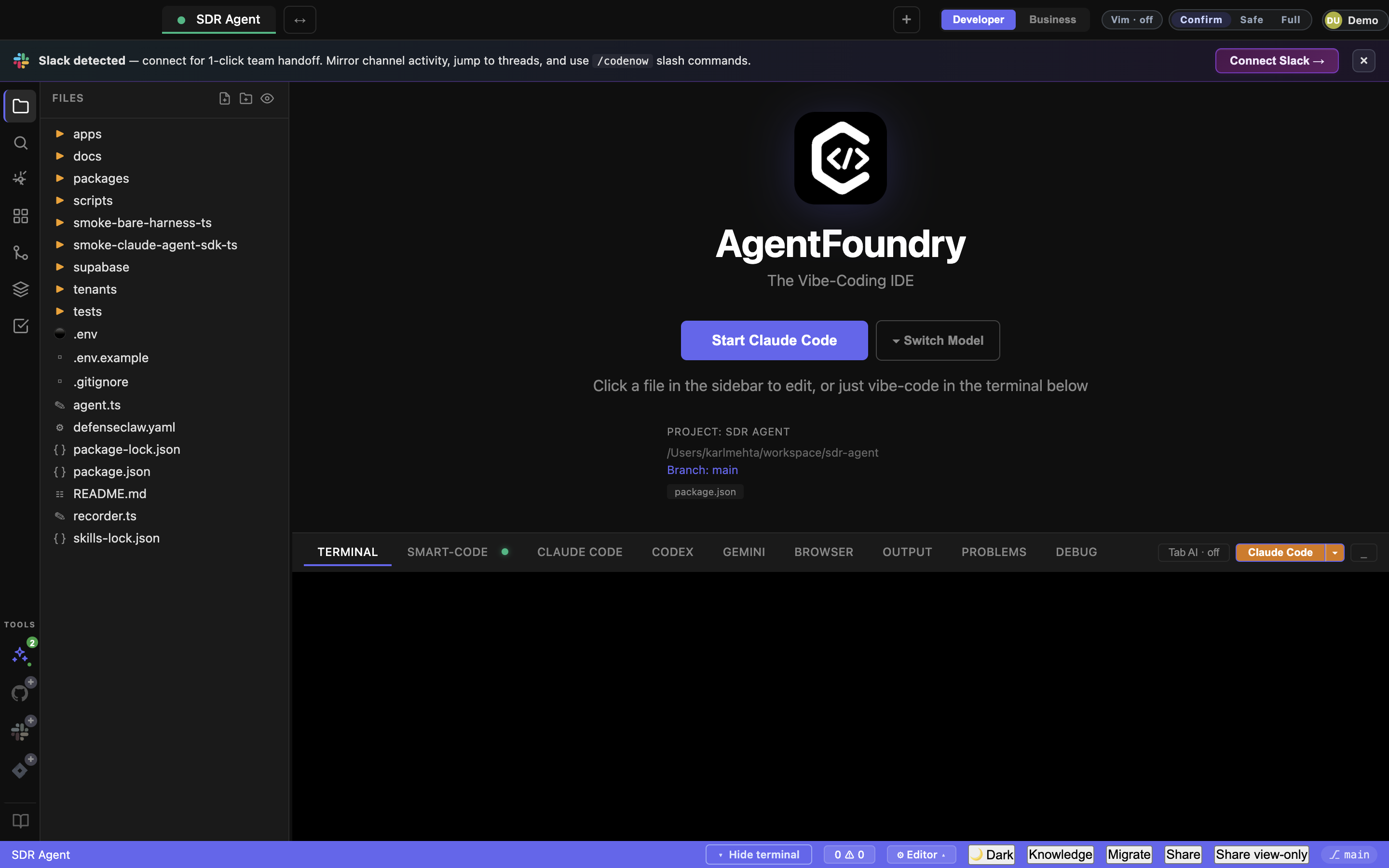
| Element | What it does |
|---|---|
| File tree | Click a file to open in Monaco. Arrow keys navigate. Right-click for new file/folder, rename, delete. |
Search bar (Cmd+P) | Quick-open by file name |
Cross-project search (Cmd+Shift+F) | Search regex across all open projects |
2b. Connections
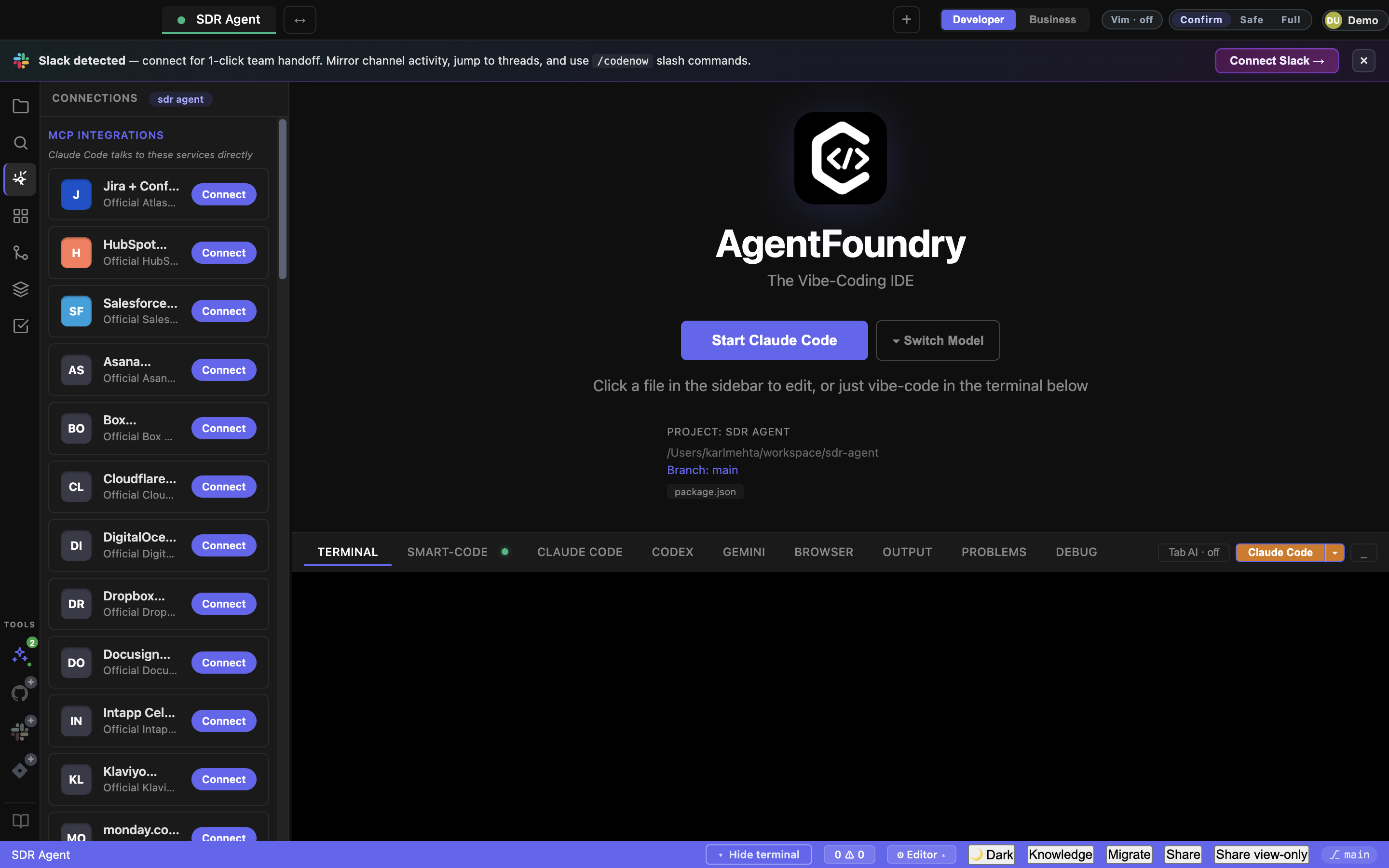
Per-project MCP integrations — different projects see different connectors.
| Element | What it does |
|---|---|
| Slack | OAuth connect → Slack MCP read access |
| GitHub | Install GitHub App → repo/issue/PR context |
| Jira | Atlassian OAuth → ticket context |
| Notion / Linear / Confluence | (When detected) |
| + Add Custom MCP Server | Manual MCP config for any HTTP or stdin server |
| Disconnect (per row) | Removes the connection from this project |
2c. Extensions
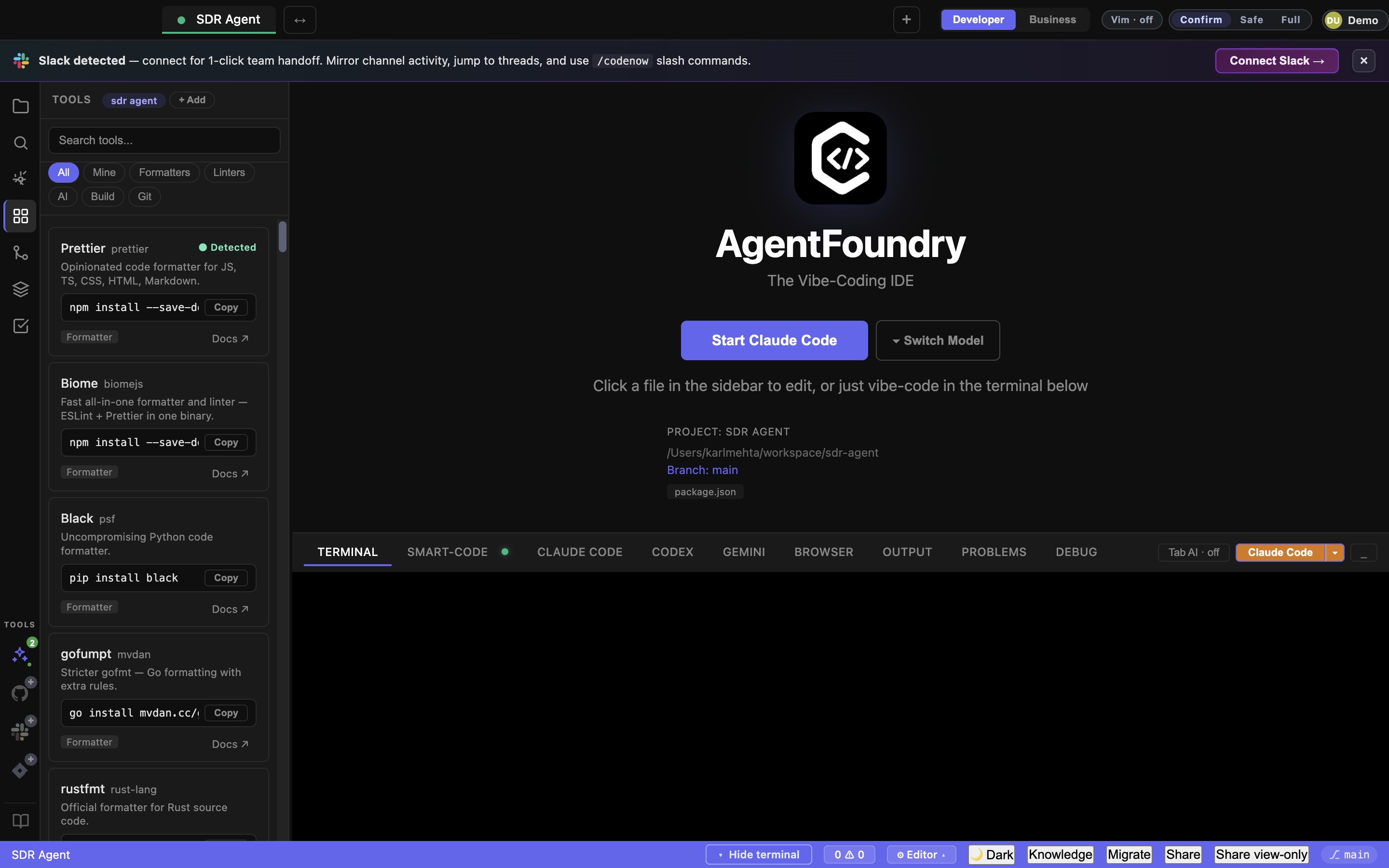
Open VSX marketplace + your own dev-tool registry.
| Element | What it does |
|---|---|
| Search bar | Filter extensions by name/keyword |
| Category filters: All · Mine · Formatters · Linters · AI · Build · Git | Pre-canned filter buttons |
| + Add (top right) | Register a custom tool: name, install command, detect-binary, category, docs URL. Saved to ~/.codenow/extensions.json |
| Save / Cancel (in form) | Persist or dismiss the new tool entry |
| Install (per extension card) | Runs the install command in the bottom terminal |
2d. Git
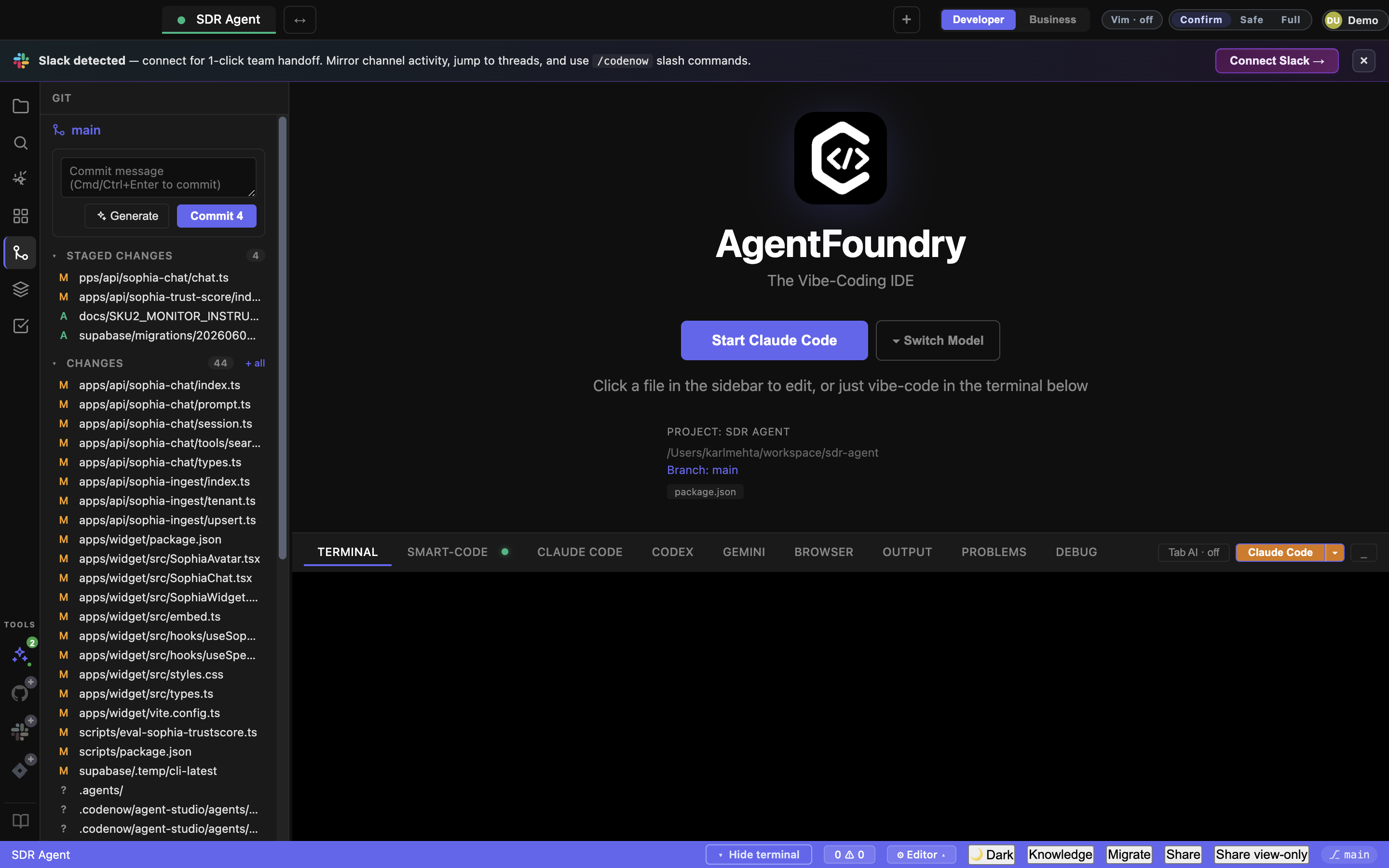
| Element | What it does |
|---|---|
| Branch dropdown | Switch / create branch |
| Changes list | Modified / added / deleted files. Click to diff in Monaco |
| Stage all / Stage selected | Standard git stage flow |
| Commit message + Commit button | Creates a commit |
| Push / Pull | Standard git remote ops |
| Recent commits | Last 10 commits with git log --oneline style |
2e. Agents
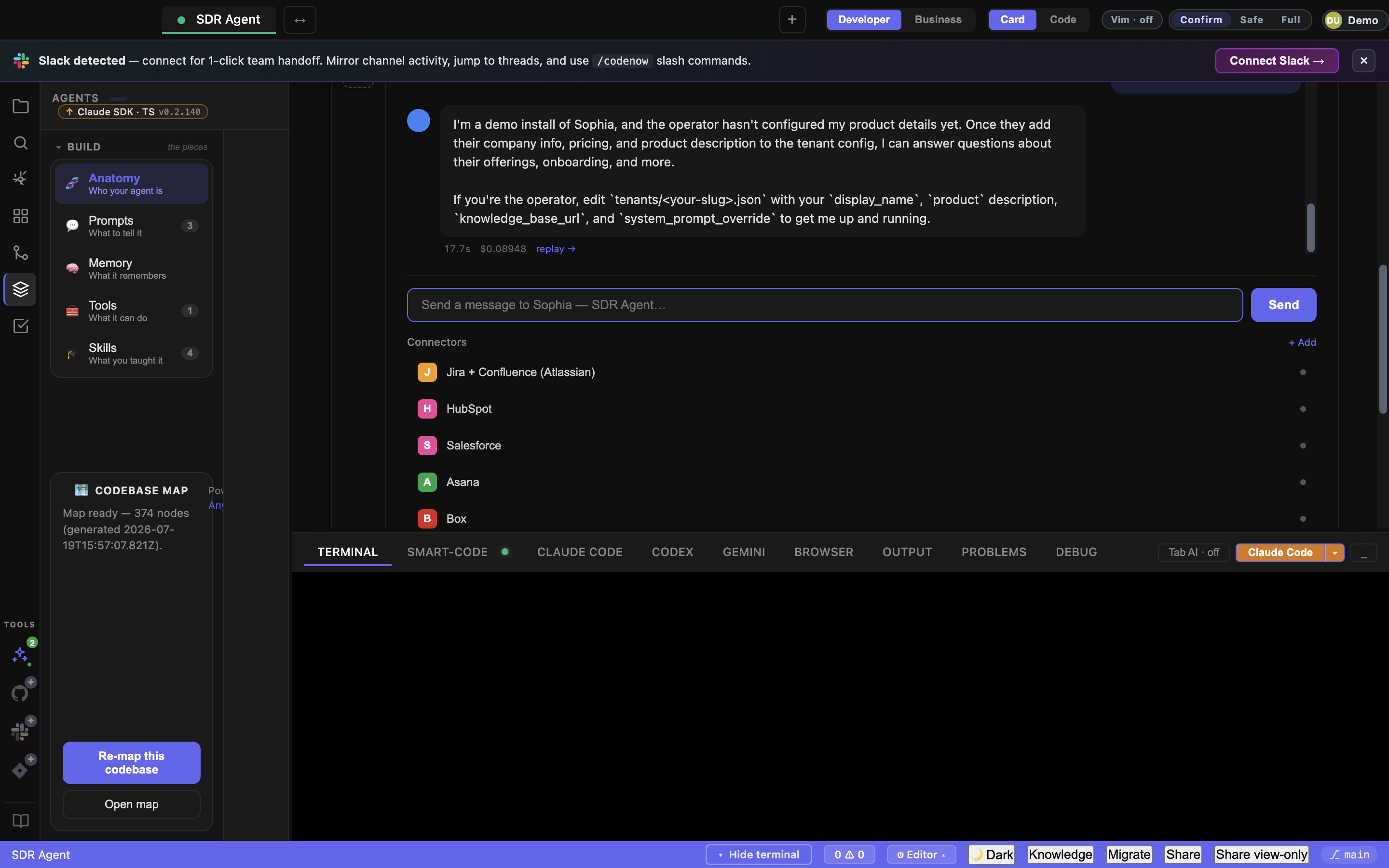
The big one. Ten sub-tabs covering the agent lifecycle. See §5 Agents panel deep-dive below.
3. Left sidebar — Business mode
Toggle the topbar mode switcher to Business to swap the entire sidebar.
3a. Catalog
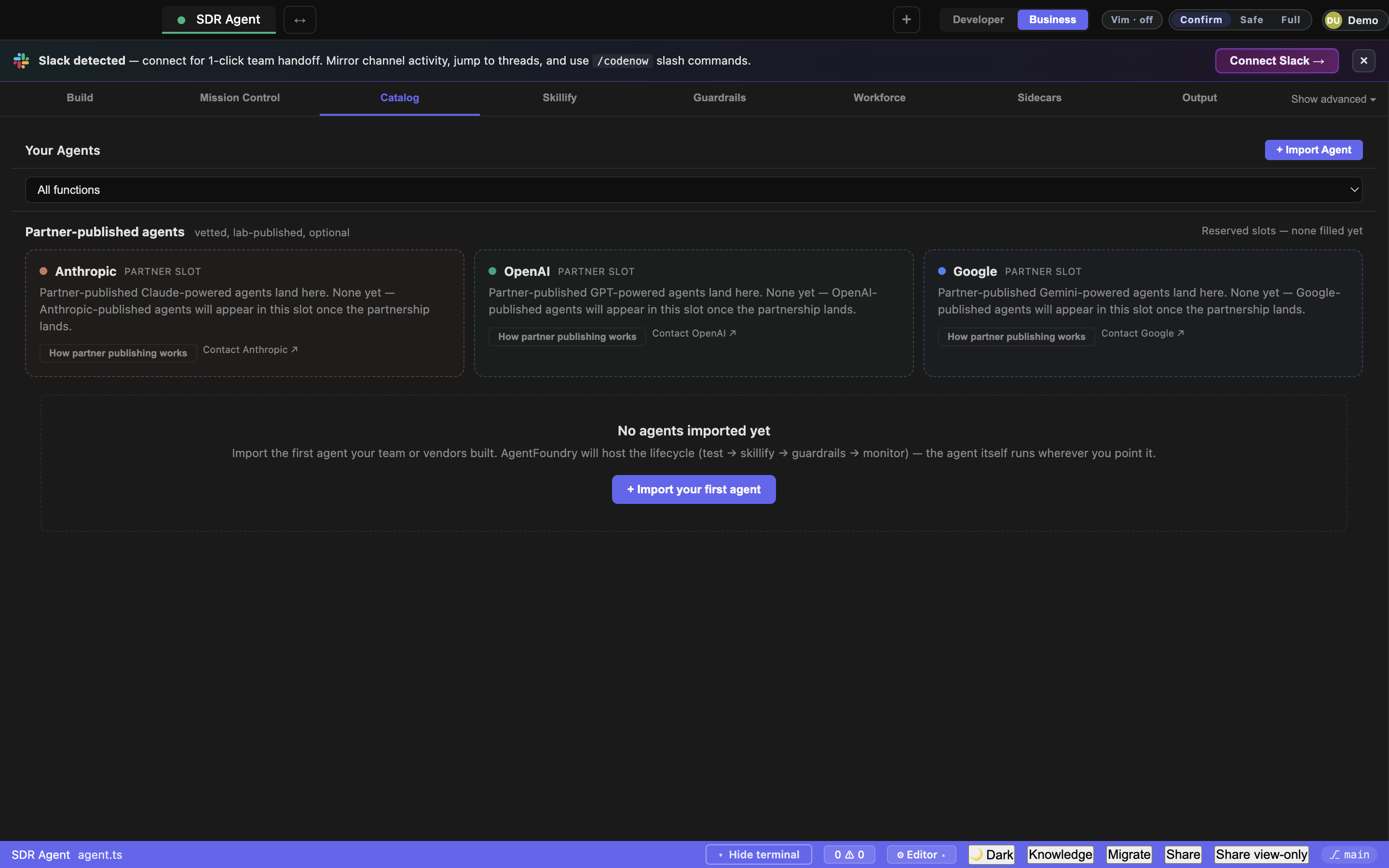
| Element | What it does |
|---|---|
| + Import Agent | Wizard: import from Agent21 marketplace, HTTP endpoint, or your dev team |
| Function filter (HR · Finance · Legal · Sales · Marketing · Ops · IT · CX) | Filters imported agents by business function |
| Agent card | Shows provenance (built-by, runs-at, data access, price). Click to skill / guardrail |
3b. Skillify
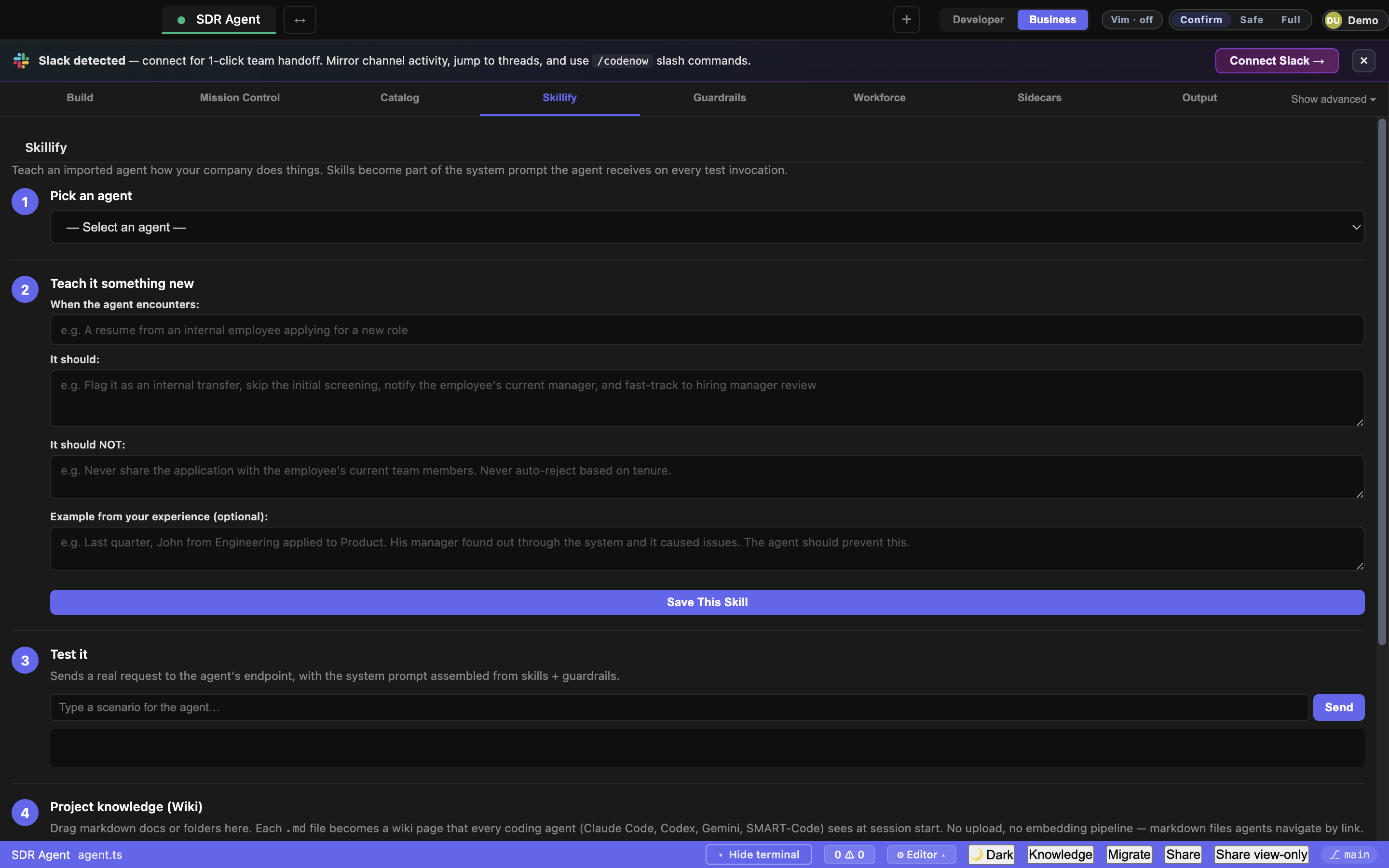
3-step training UX for non-coders.
| Element | What it does |
|---|---|
| Step 1: Pick agent | Dropdown of imported agents |
| Step 2: Trigger description | ”When this agent should activate” (e.g. “A resume from an internal employee”) |
| Step 3: Skill body | Free-text knowledge / examples / counter-examples |
| Save This Skill | Persists to <project>/.codenow/skills.json (project-global) |
| Test input + Send | Runs the agent inline with the skill applied |
3c. Guardrails
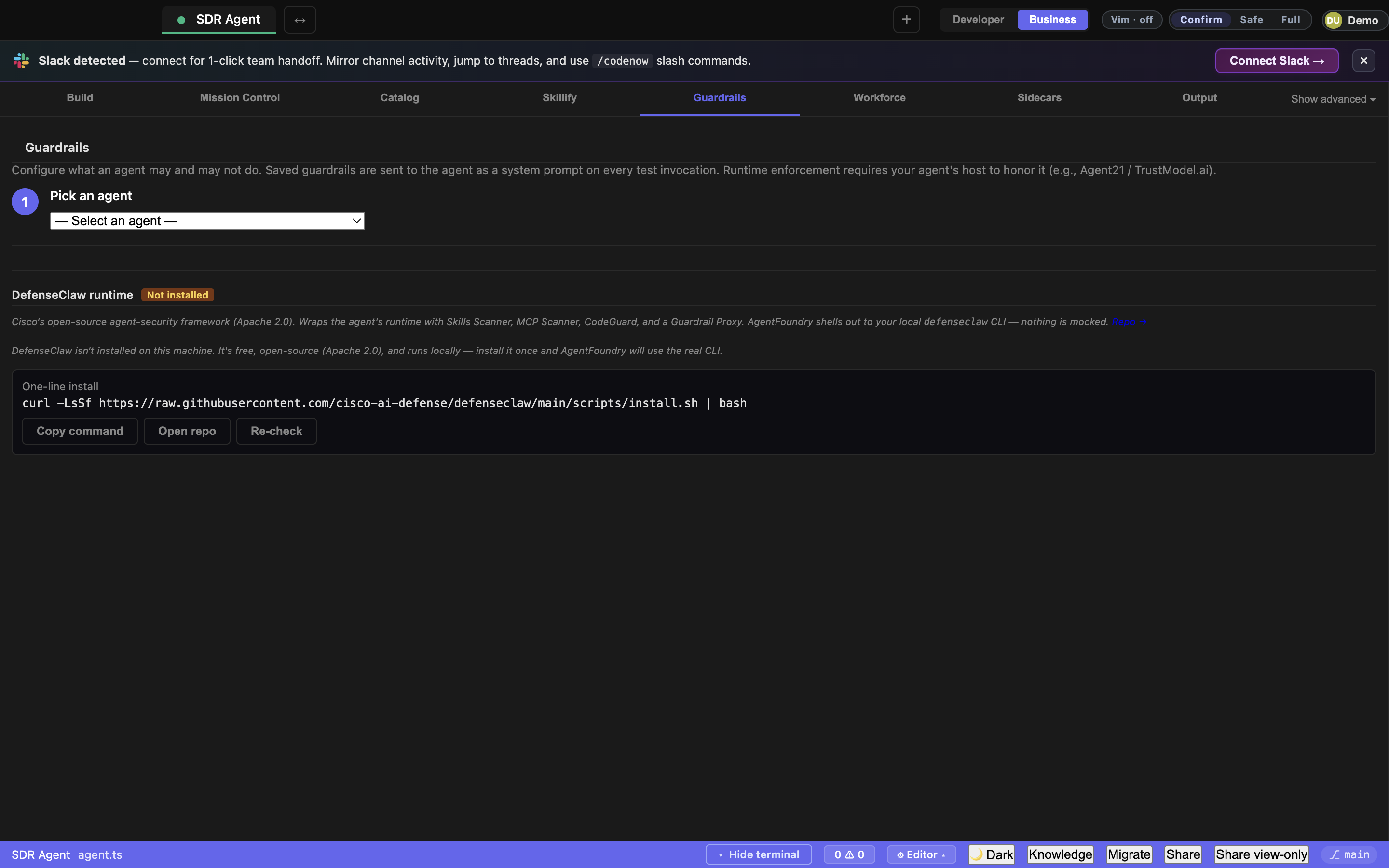
| Element | What it does |
|---|---|
| + Add data scope | Restrict what data the agent can read |
| + Add action | Allow/deny specific tool calls |
| Compliance toggles (PII · PHI · financial · custom) | One-click compliance presets |
| TrustScore threshold slider | Min score to allow the agent’s output |
| Save Guardrails | Persists. Sent as system prompt on every invocation |
3d. Workforce
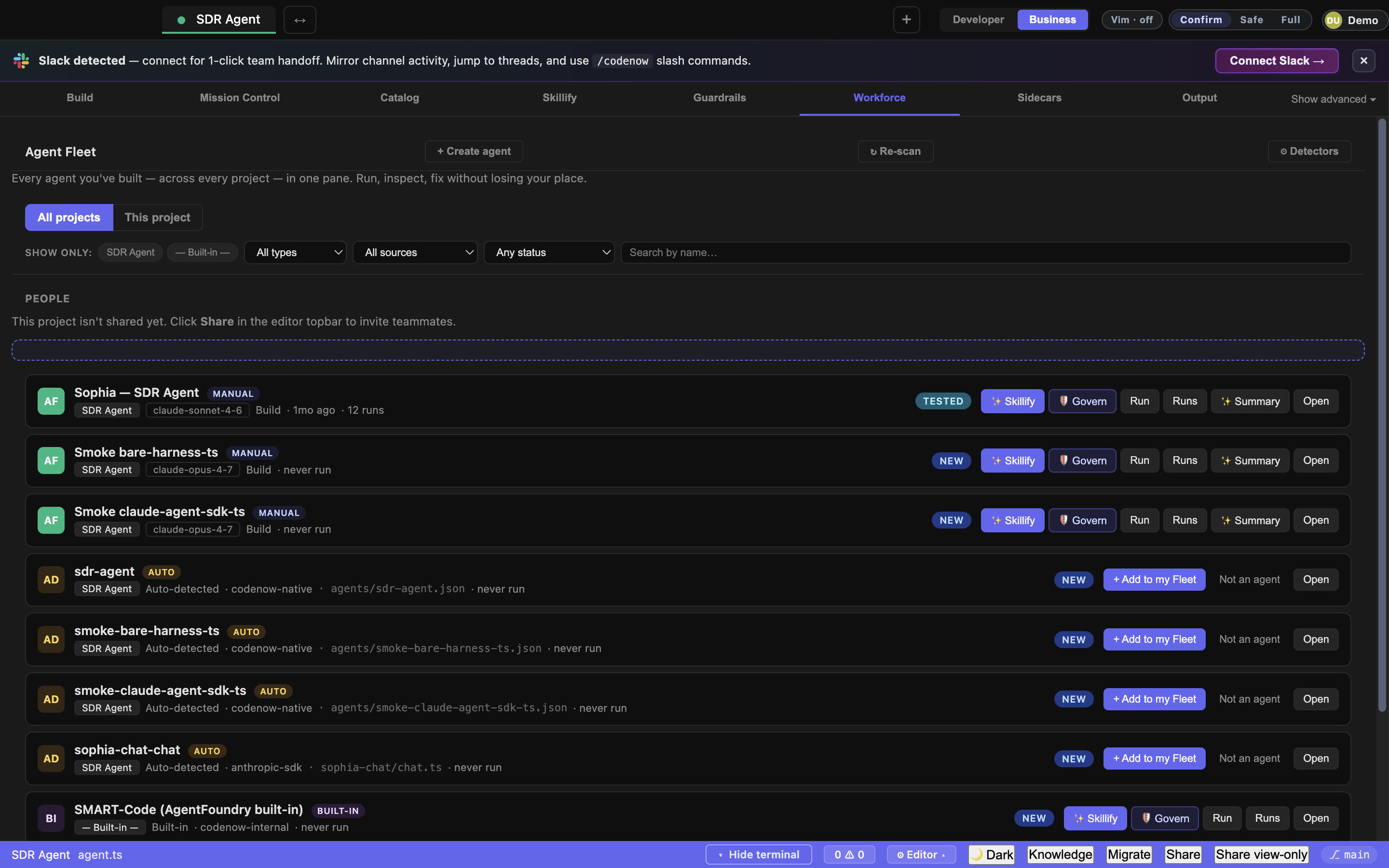
Humans + agents side-by-side. Each row shows: name, role, function, last active, owner.
3e. Output
Agent activity log with TrustScores. Real run history from ~/.codenow/exec-agent-runs.json (capped 100/agent, 500 total).
4. Editor area
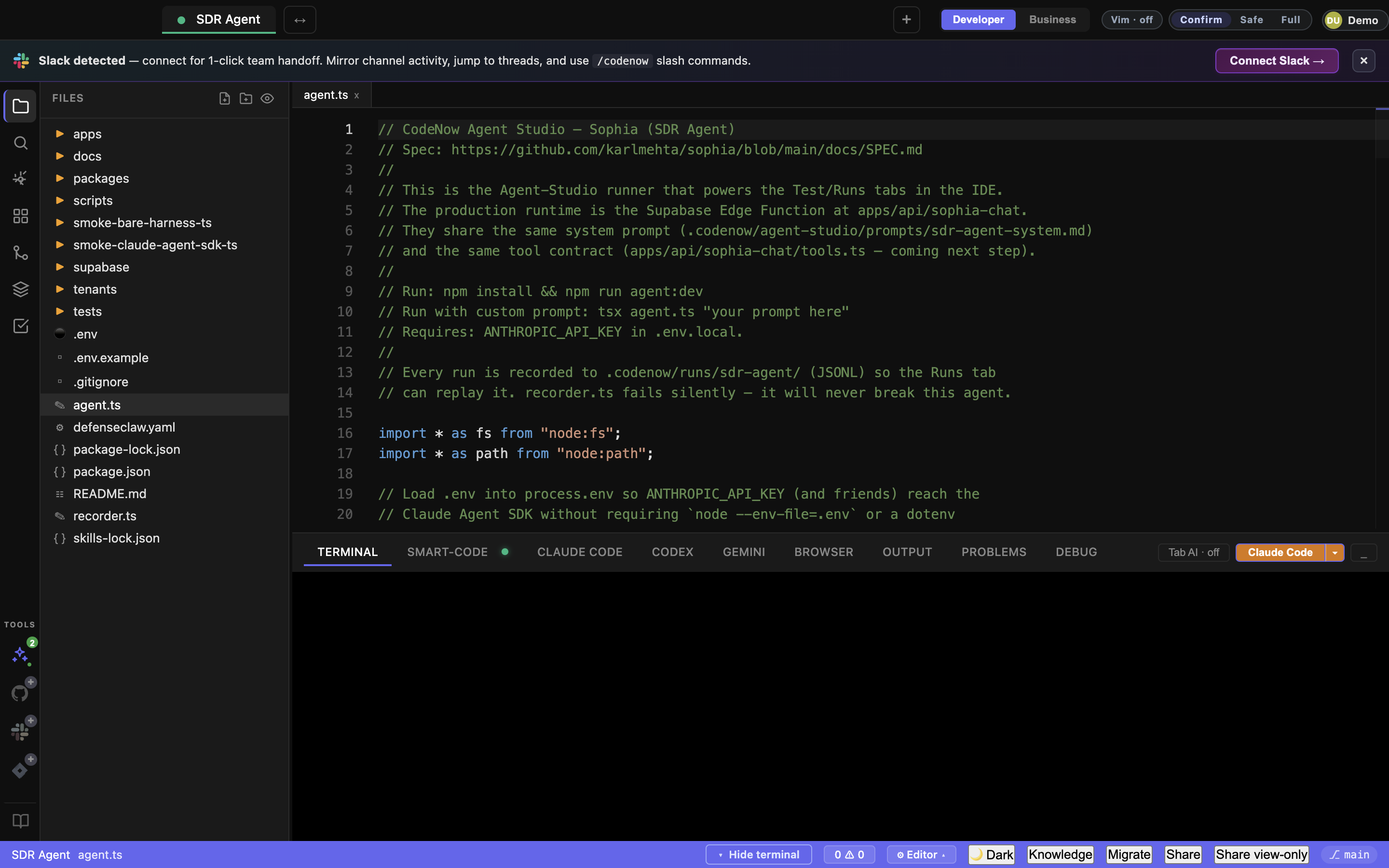
Monaco Editor — the same engine VS Code uses.
| Shortcut | Action |
|---|---|
Cmd+S | Save |
Cmd+/ | Toggle line comment |
Cmd+D | Add next match to multi-cursor |
Cmd+Shift+L | Select all matches |
Cmd+P | Quick-open file |
Cmd+Shift+P | Command palette |
Cmd+B | Toggle sidebar |
Cmd+J | Toggle terminal panel |
⇧⌥F | Format document (uses formatActiveFile()) |
Editor tabs at the top: file name + close ×. Drag to reorder. Right-click for “Close others” / “Close to right” / “Close all”.
5. Agents panel deep-dive
The core of CodeNow’s agent IDE story. Ten sub-tabs in lifecycle order, grouped into Define · Run · Observe · Ship.
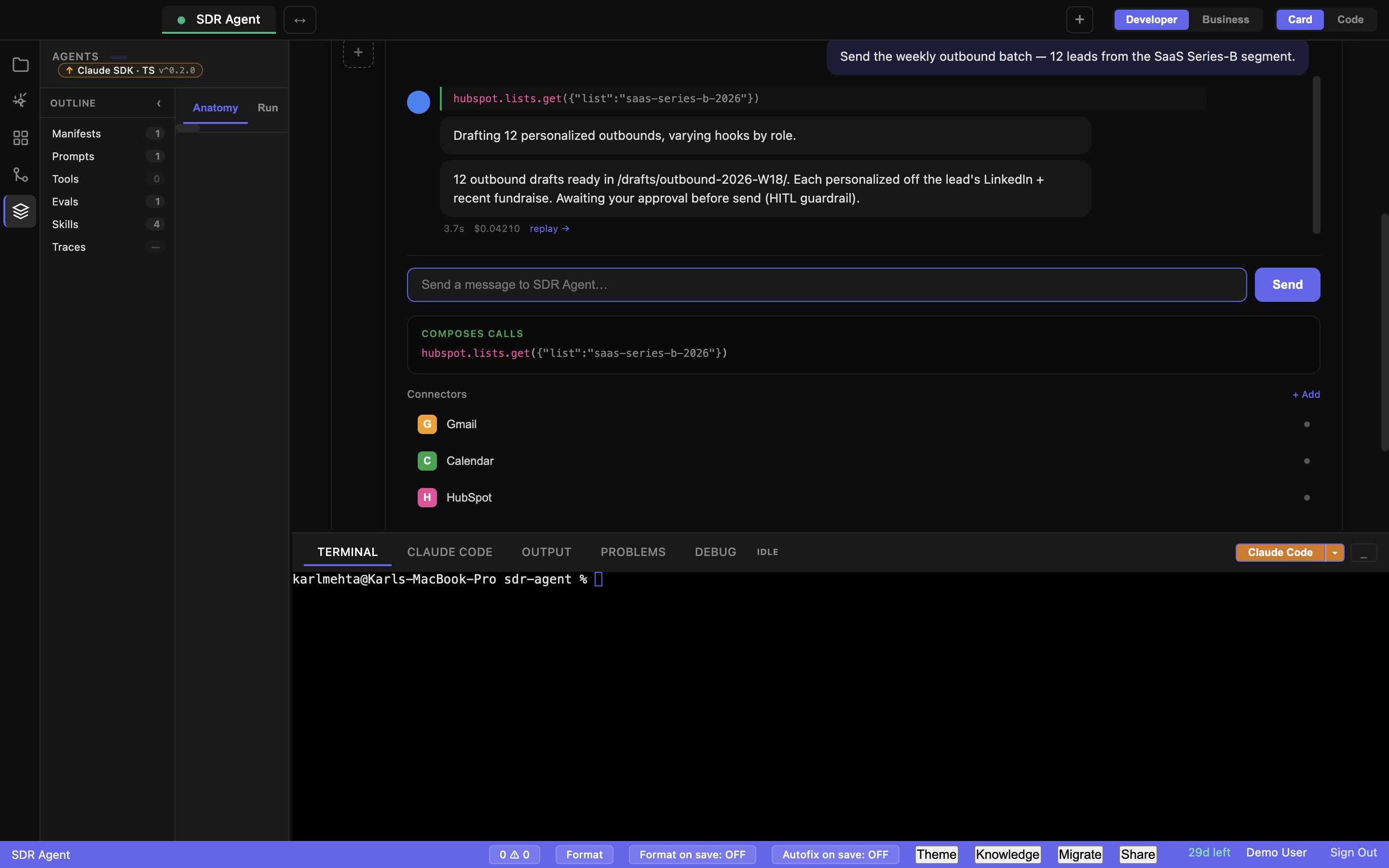
Progressive disclosure (v0.1.61). The left-rail tab groups declutter until you actually have an agent: the Run / Observe / Ship groups stay hidden until the project has its first agent. The group formerly labeled “Build” is now “Define.” And the four overlapping run tabs — Ask / Run / Threads / Test — collapse so Run is the single primary, with Ask / Threads / Test tucked under a “More ways to run” disclosure.
Sub-tab navigation strip
| Sub-tab | Purpose |
|---|---|
| Anatomy | Visual agent card — identity, skills rail, conversation, connectors, status, drawers |
| Run | Multi-model studio — the single primary run tab (Ask / Threads / Test live under “More ways to run”). Defaults to CodeNow-served SMART-Code, no key needed |
| Test | Single-agent live test (start process, send messages, see trace) |
| Runs | Recorded runs list (local JSONL + Agent21 prod). Click any → Replay viewer |
| Trace | Studio multi-model run history with cost roll-ups |
| Evals | JSON eval suites with 6 assertion types + Run-all + diff vs last |
| Tools | Visual Tool Builder + project tool scan |
| Prompts | Versioned system prompts with {{variables}} |
| Skills | Per-project skill library |
| Publish | Agent21 OAuth (one-click, no client secret) + pre-flight + 1-click monetize + marketplace browse |
Anatomy sub-tab
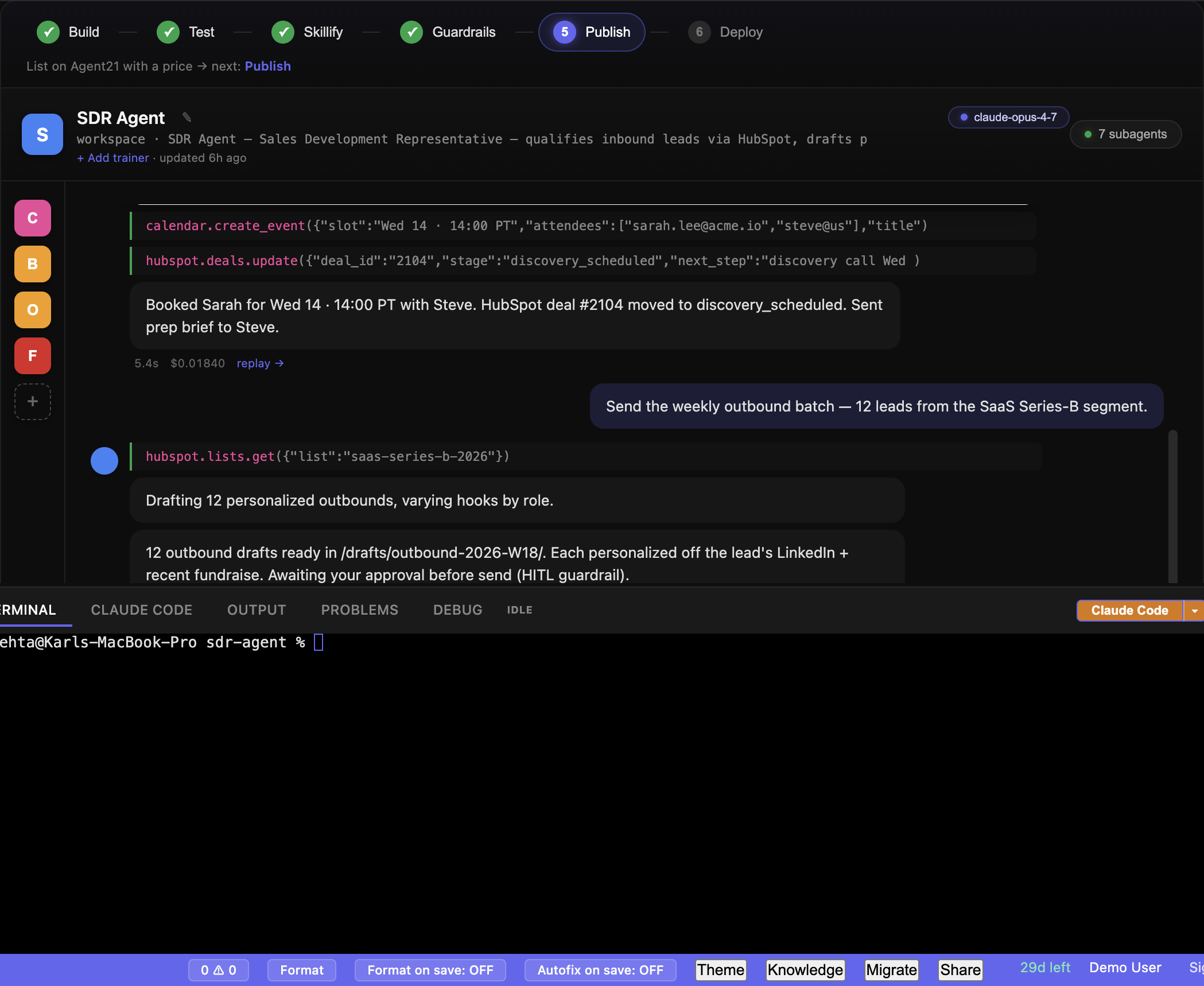
Models the Anthropic 2026 Agent mockup. Auto-promoted into the main editor area when there’s a single agent (toggle Card / Code in the topbar to swap back to file editing).
| Region | What it does |
|---|---|
| Lifecycle bar (top, full-width) | Build → Test → Skillify → Guardrails → Publish → Deploy. Each step shows ✓ when its precondition is met; click any step to jump to its sub-tab |
| Identity tile (top-left) | Color-hashed icon + name + workspace breadcrumb + model badge (click to switch model). Multi-agent dropdown when project has >1 manifest |
| Subagents pill (top-right) | Click → drawer listing every tool with usage stats |
| Skills rail (left vertical) | Color tiles per skill. Click → edit modal (name + description + prompt). + tile → New skill modal. Drop target for skill drags from the Skills tab |
| Conversation pane (center) | Chat thread of last 10 recorder runs. Type → spawn agent → response appears with cost/duration/replay link |
| Composes calls panel | Tool_use events from latest run as code |
| Connectors strip | Per-project MCPs. Click → Connections sidebar |
| Status bar (bottom) | Pulsing live dot during runs · “Ready · N runs” otherwise · connector count · orange + Tool button → Visual Tool Builder · Publish & Monetize ↗ → Agent21 wizard |
| Tasks drawer (click status pill) | Running runs + recent runs (clickable to Replay) |
Anatomy element close-ups
 Lifecycle bar — Build · Test · Skillify · Guardrails · Publish · Deploy. Each step is a clickable shortcut.
 Identity tile — agent name (click to rename), workspace breadcrumb, “trained by” line, model badge (click to switch), subagents counter.
 Skills rail — one rounded-square tile per skill (color-hashed by name). Click a tile to edit (name / description / prompt template). Click
 + to create a new skill.
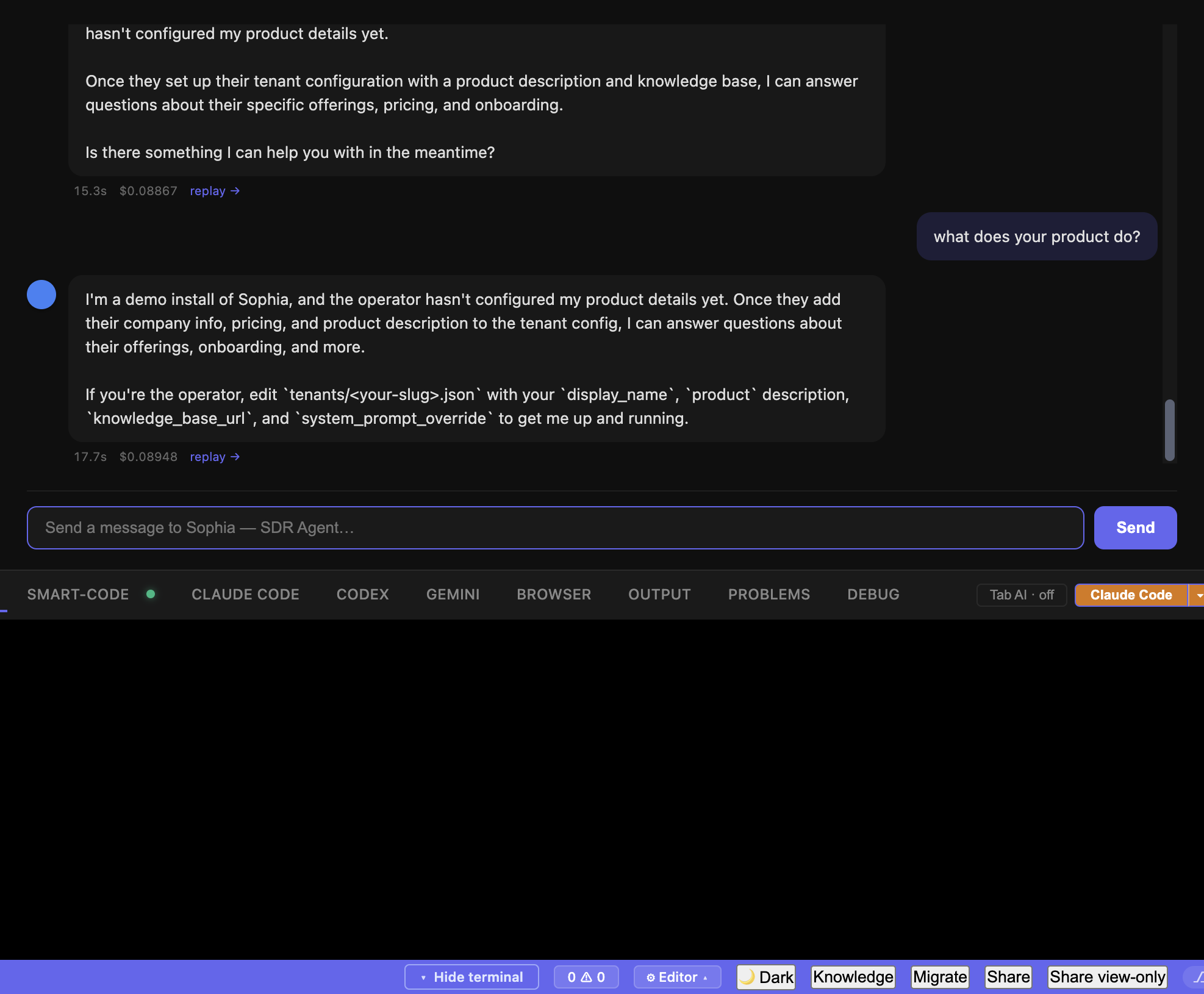 Conversation pane — last ten recorder runs as a chat thread. Each turn shows the user input, the assistant text, inline tool calls (
hubspot.lists.get(...)), and a replay → link to open the full event timeline.
Run sub-tab (multi-model studio)
Defaults to CodeNow-served SMART-Code — Run and Test work with no API key (served inference, metered against a free pool). Ask / Threads / Test are collapsed under the “More ways to run” disclosure. Adding your own keys is optional and only needed for side-by-side model comparison.
| Element | What it does |
|---|---|
| System prompt textarea | Optional system prompt prepended to every model call |
| User prompt textarea | The prompt fanned out to all selected models |
| Model picker (multi-select) | Toggle SMART-Code (served, keyless) / Claude Opus / GPT-5 / Gemini / etc. |
| Manage keys link | Opens Connections tab to add optional BYOK keys for model comparison |
| Run button | Fans out to every selected model in parallel |
| Snapshot as eval button | Saves the most recent successful run as a new eval case |
Test sub-tab
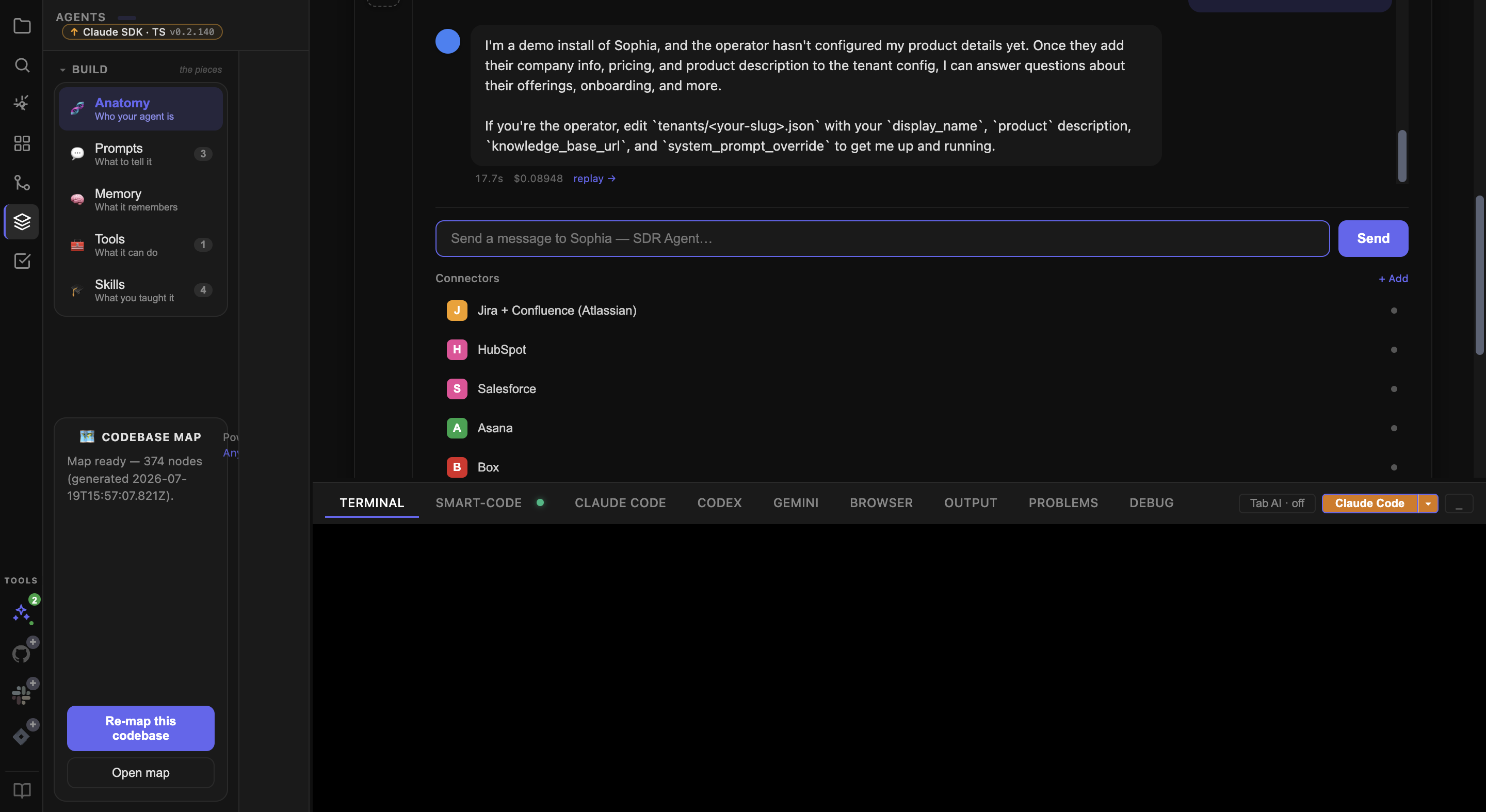 (same layout)
| Element | What it does |
|---|---|
| Framework dropdown | Claude Agent SDK · MCP · LangChain · CrewAI · OpenAI · ADK · n8n · HTTP · Custom |
| Mode dropdown | stdin (CLI) or HTTP (POST) |
| Start command input | e.g. npx tsx src/agent.ts |
| HTTP URL input (when mode=http) | e.g. http://localhost:5678/webhook/agent |
Start Agent (⌘R) | Spawns the process via startAgentProcess IPC; switches to chat focus |
| Stop | Kills the process |
| TrustModel API Key input | Saves to env; activates TrustModel guardrail enforcement on every test |
| Generate API Key / Open Control Plane links | Open trustmodel.ai in browser |
| Chat input + Send | Multi-turn conversation with the running agent |
| Skillify button | Save the last exchange as a skill |
| Trace sidebar | Real-time tool calls + LLM messages |
Runs sub-tab
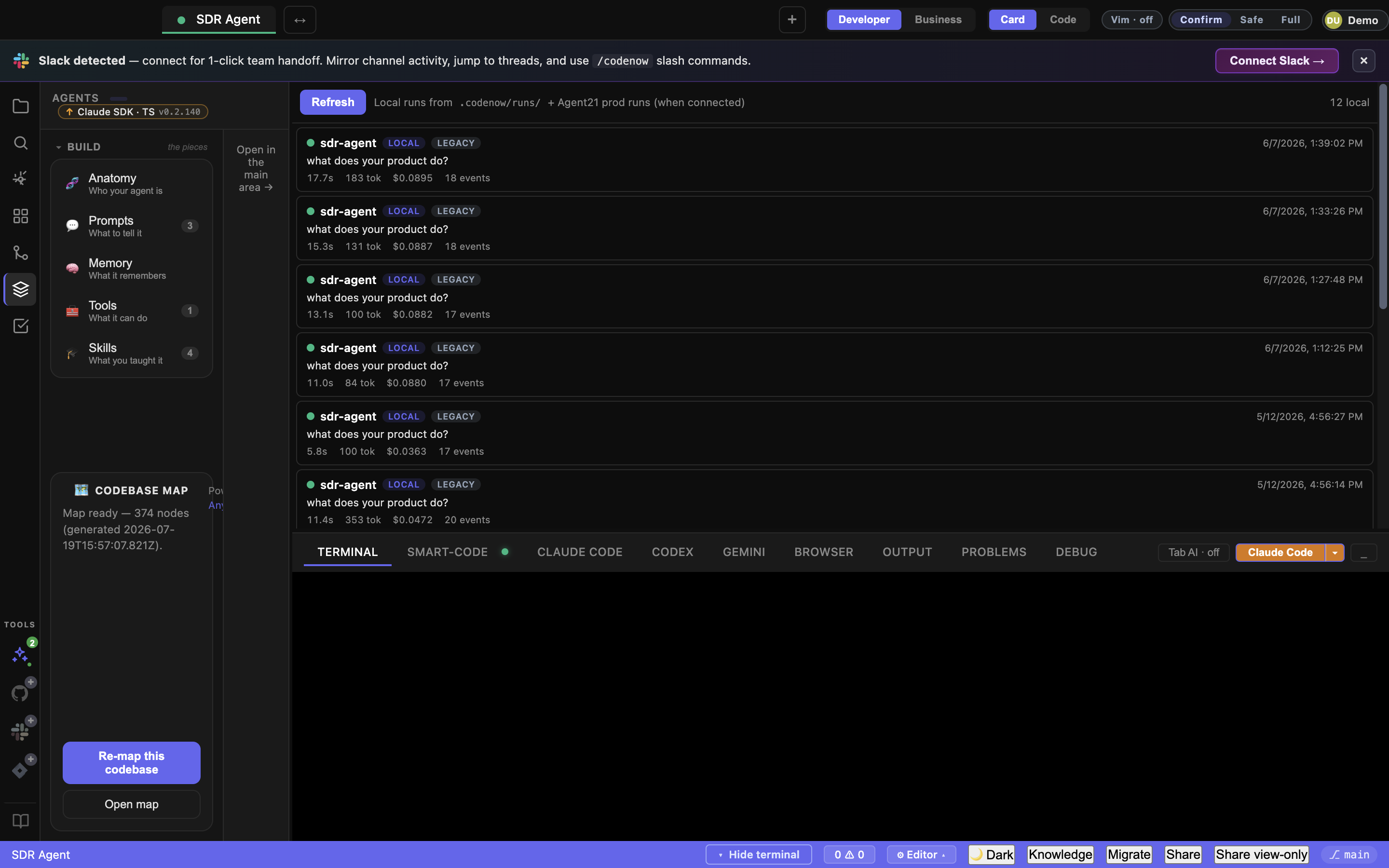
| Element | What it does |
|---|---|
| Refresh | Re-reads .codenow/runs/ + Agent21 prod runs |
| Run row | Status dot (success/error/running) · slug · source badge (local/prod) · input preview · duration · tokens · cost. Click → Replay viewer |
Replay viewer (opens when you click a run)
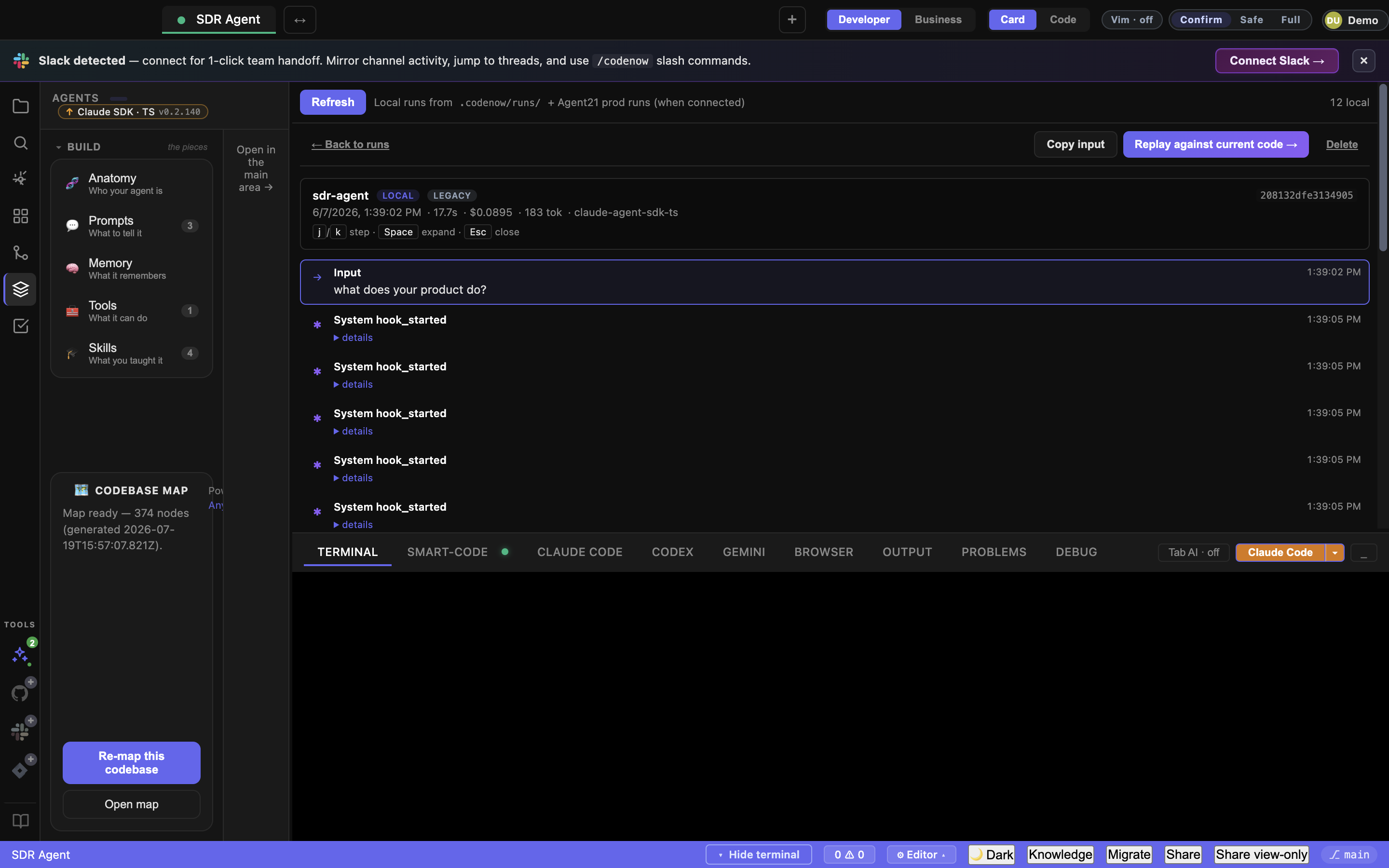
| Control | Action |
|---|---|
| ← Back to runs | Return to the list |
| Copy input | Copy the run’s input to clipboard |
| Fork to current code → | Re-runs original input through current local agent (only for local runs) |
| Delete | Delete the JSONL file |
| j / ↓ | Step forward |
| k / ↑ | Step back |
| Space | Toggle expand/collapse the current step’s <details> |
| Esc | Close back to list |
Fork-to-current-code diff

| Region | What it shows |
|---|---|
| Banner (top) | ✓ Green “Output matches” or ⚠ amber “Output differs” + cost/duration/step deltas |
| Original column (left) | Past run’s timeline |
| Fork column (right) | New run’s timeline (from spawning current code) |
| stderr (collapsible) | If the spawn produced stderr, it’s preserved |
Evals sub-tab
| Element | What it does |
|---|---|
| Refresh | Re-scan .codenow/agent-studio/evals/ |
| Run all | Fan every case across every selected model |
| Create seed file | Drop a starter eval JSON |
| Eval row | Click to expand cases. Each cell shows pass/fail/skipped. Click → see actual output |
Tools sub-tab
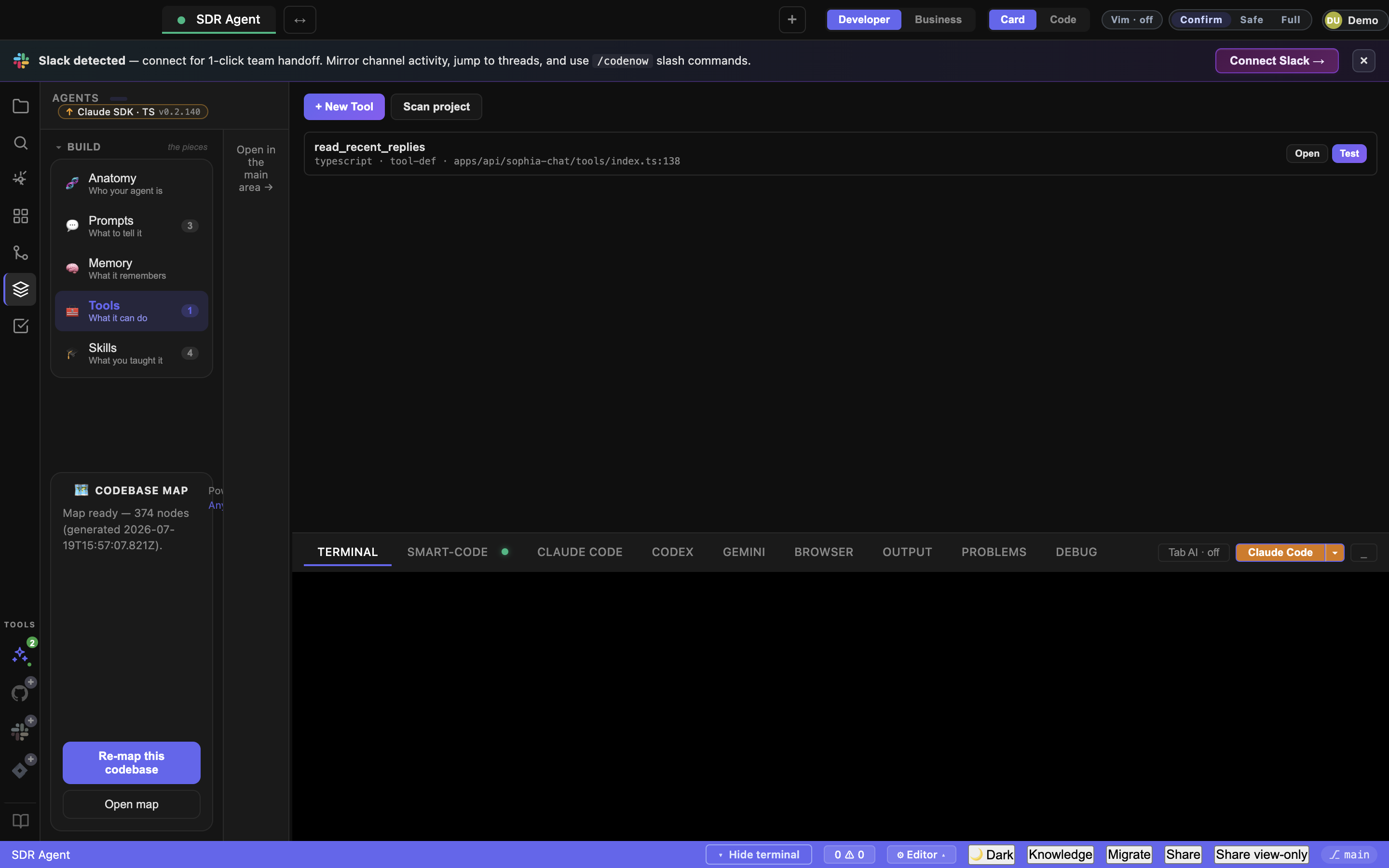
| Element | What it does |
|---|---|
| + New Tool | Opens Visual Tool Builder modal |
| Scan project | Finds Python @tool / @function_tool decorators + TS/JS objects with {name, inputSchema} |
| Tool row | name · lang · file:line · Open (in Monaco) · Test (modal with JSON args) |
Each row is draggable — drag onto the Anatomy card to add to manifest.tools.
Prompts sub-tab
| Element | What it does |
|---|---|
| Refresh | Re-scan .codenow/agent-studio/prompts/ |
| + New prompt | Create a new versioned prompt MD file |
| Prompt row | name · description · last modified. Click → opens in Monaco |
Skills sub-tab
| Element | What it does |
|---|---|
| + New Skill | Modal: name, description, prompt body, tags, expected behavior |
| Skill row | Click to edit. Drag onto Anatomy card → adds to manifest.primarySkills |
Publish sub-tab
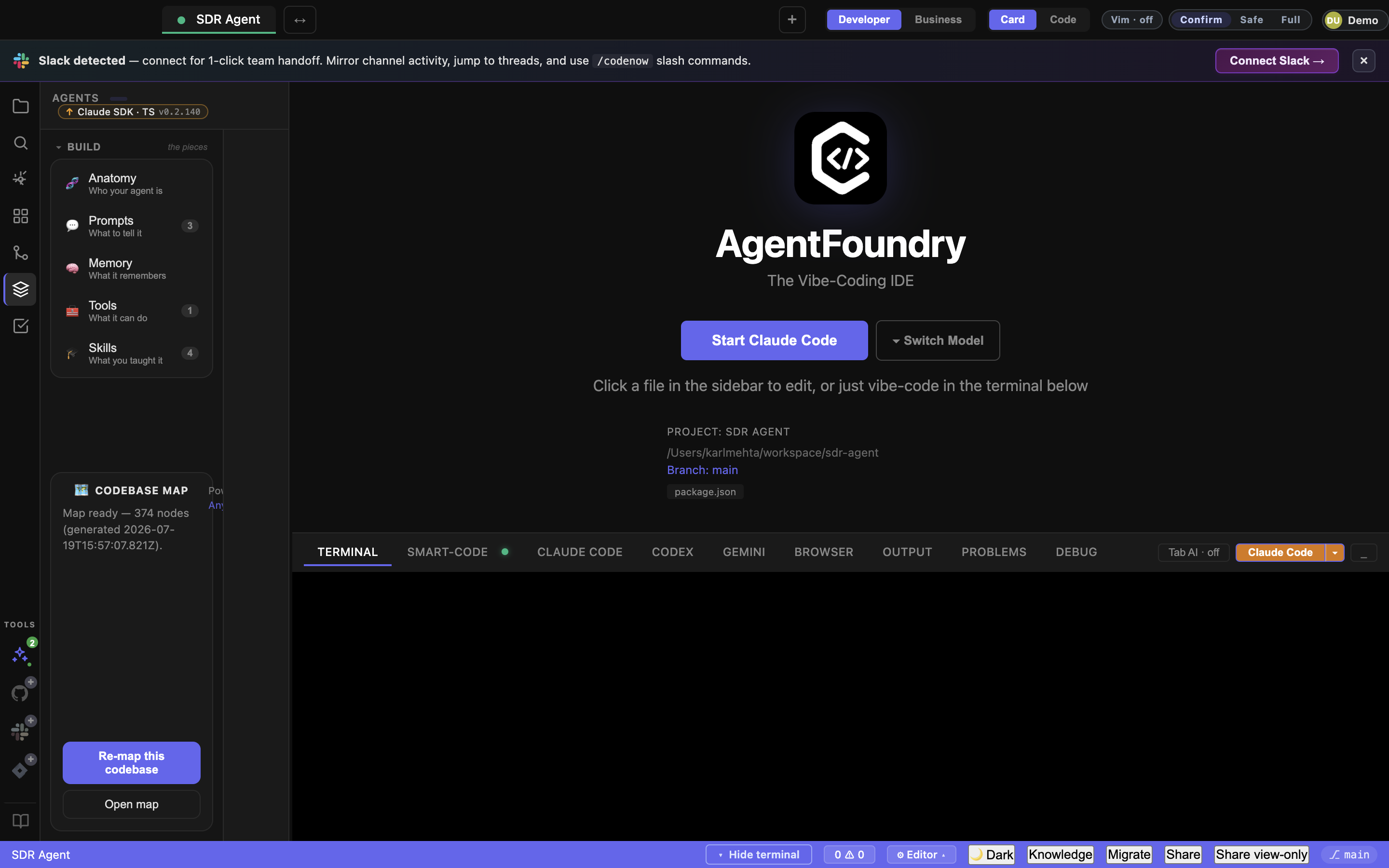
| Element | What it does |
|---|---|
| Refresh | Re-load manifests from disk |
| + Build new | Opens the Foundry — Describe → Build by default, or the Advanced: build step by step scaffold wizard (kit picker → fields → scaffold) |
| + Import | Manifest editor for advanced cases |
| Browse marketplace | Opens Agent21 catalog inline with Subscribe + Fork actions |
| Connect Agent21 | One-click browser OAuth — no client secret / env var (credential lives on CodeNow’s backend) |
| OAuth status banner | Shows connection state |
| Manifest row | Shows pre-flight status. Click Publish ↗ for 6-point checklist + 1-click monetize |
6. Bottom panel
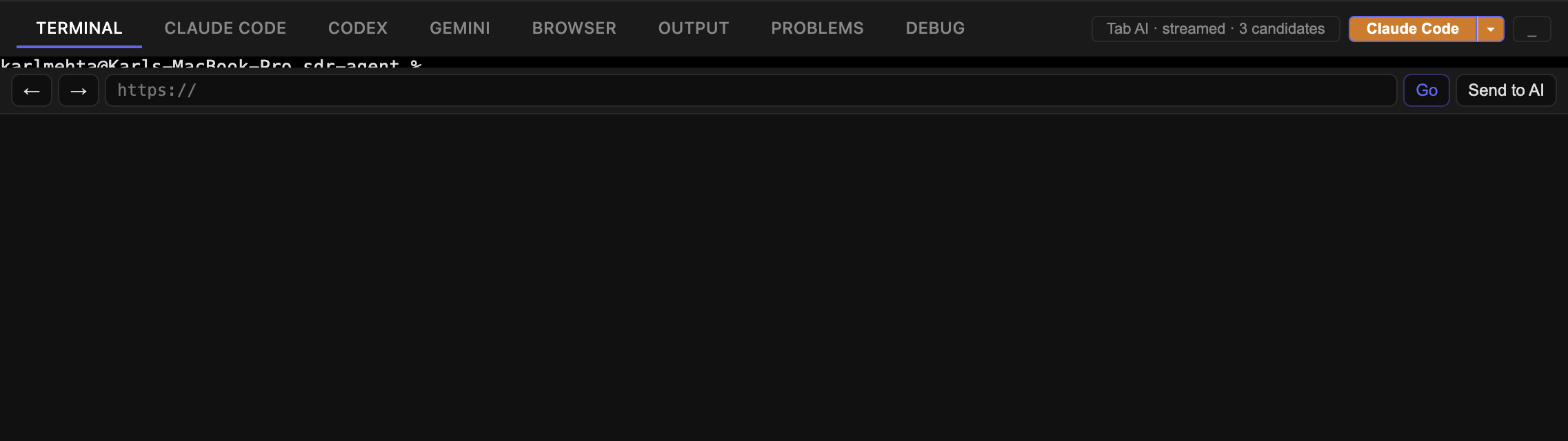
Five tabs at the top.
| Tab | What it does |
|---|---|
| Terminal | Real shell via node-pty. Drag files from Finder → paste path |
| Claude Code | xterm running claude CLI in this project (or run any other AI model) |
| Output | Build / lint / format output |
| Problems | Static analysis errors with click-to-jump |
| Debug | DAP debug session |
Terminal toolbar buttons (top right of panel)
| Element | What it does |
|---|---|
| Start AI (zap icon) | Spawn claude (or your selected AI CLI) in the active terminal |
| Switch Model (▾) | Dropdown: Claude Code · OpenAI Codex · Gemini · Aider · Copilot |
Toggle terminal (_) | Collapse/expand the bottom panel |
Debug panel buttons
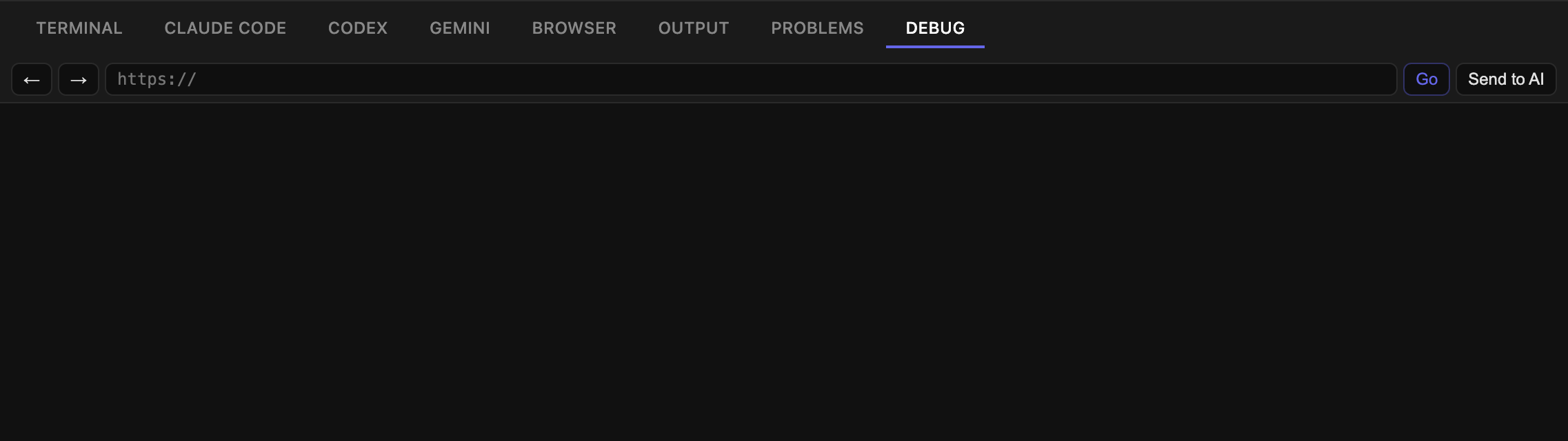
| Button | Action |
|---|---|
| ▶ Debug | Launch debug for the active file (Node, Python, etc.) |
| ⏵ | Continue (F5) |
| ⤼ | Step over (F10) |
| ⤓ | Step into (F11) |
| ⤒ | Step out (⇧F11) |
| ■ | Stop |
7. Status bar (bottom of window)

| Element | What it does |
|---|---|
| ⚠ 0 0 | Problem count — error count + warning count. Click to jump to next problem |
| Format | Format the active file (⇧⌥F) |
| Format on save: OFF/ON | Toggle save-time formatting |
| Autofix on save: OFF/ON | Toggle save-time ESLint / Ruff / Biome --fix |
| Theme | Open theme picker (built-in dark + import any VS Code theme JSON) |
| Knowledge | Open the Knowledge Bundle modal — single source for CLAUDE.md / AGENTS.md / GEMINI.md / .aider.conf.yml |
| Migrate | Re-run the Migration Assistant — re-scan for tools/credentials from VS Code, Cursor, Claude Code, gh, vercel, etc. |
| Share | Open the Collaboration modal — invite a domain expert / business user to this project |
| Sign Out | Supabase sign out |
8. Modals
Migration modal
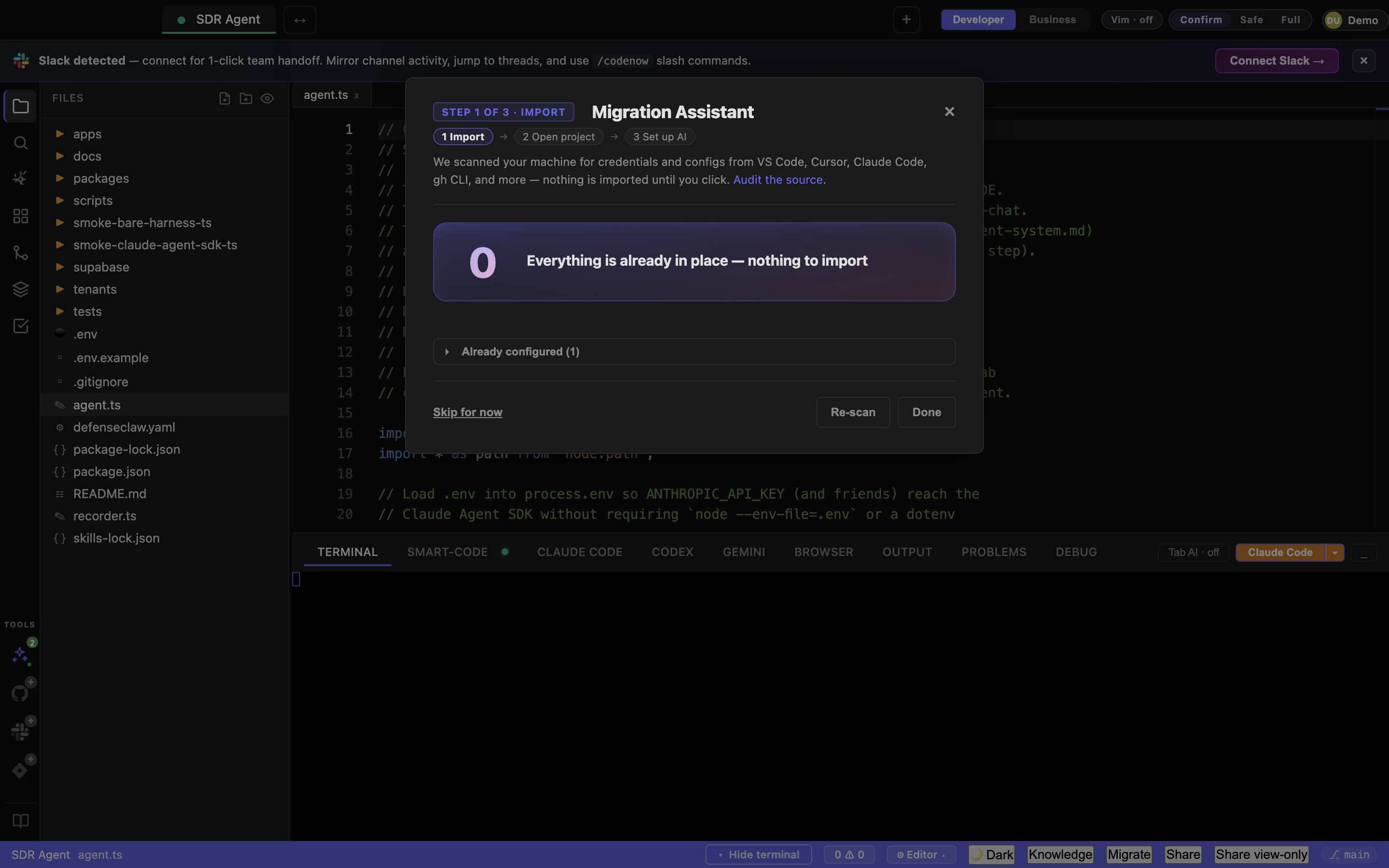
Opens automatically on first launch (and on demand from Migrate in the status bar).
| Element | What it does |
|---|---|
| Source row (per detected tool) | Checkbox + tool icon + what gets imported |
| Import all auto-detected | Single-click sweep |
| Re-scan | Look again for newly-installed tools |
| Done | Close |
Sources detected: VS Code · Cursor · Claude Code · gh · vercel · gcloud · Aider · Anthropic / OpenAI / Google env vars.
Knowledge bundle modal
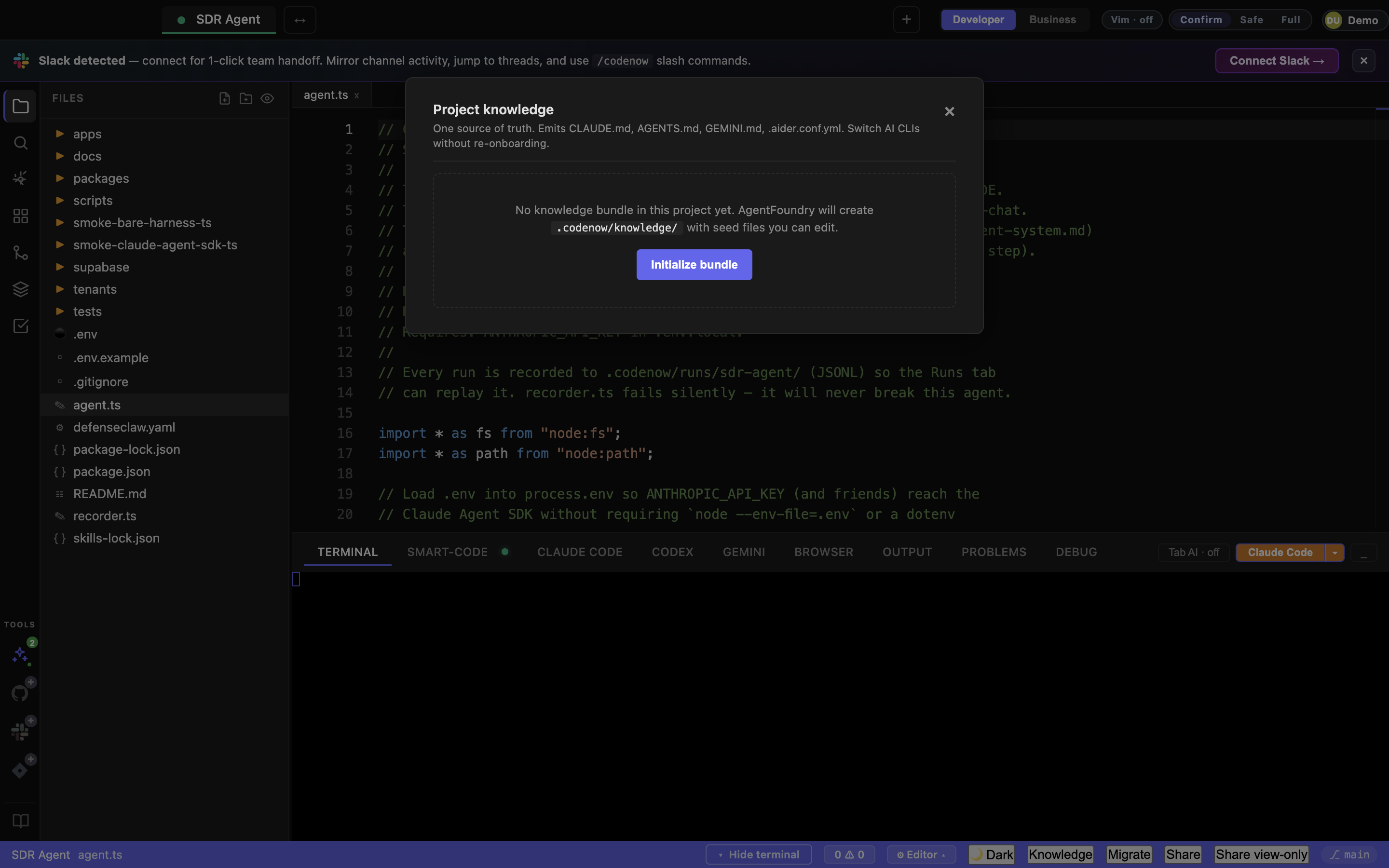
| Element | What it does |
|---|---|
| Initialize bundle | Creates the canonical project-knowledge file |
| Sync now | Regenerates CLAUDE.md / AGENTS.md / GEMINI.md / .aider.conf.yml from the canonical source |
| Close | Done |
Share / Collaboration modal
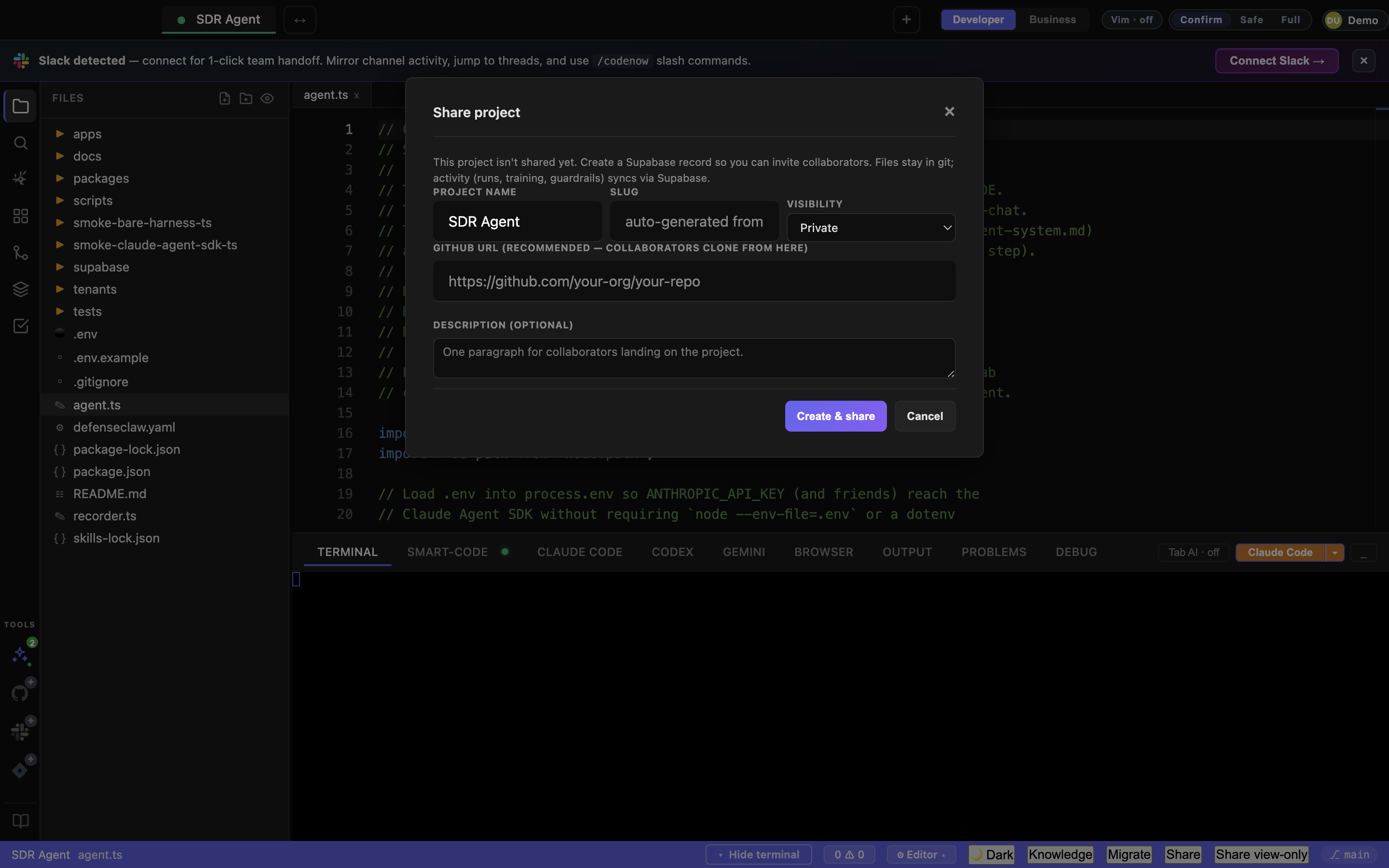
Invite a collaborator (developer or business user) to the project. Files stay in git, activity stream lives in Supabase.
Visual Tool Builder modal
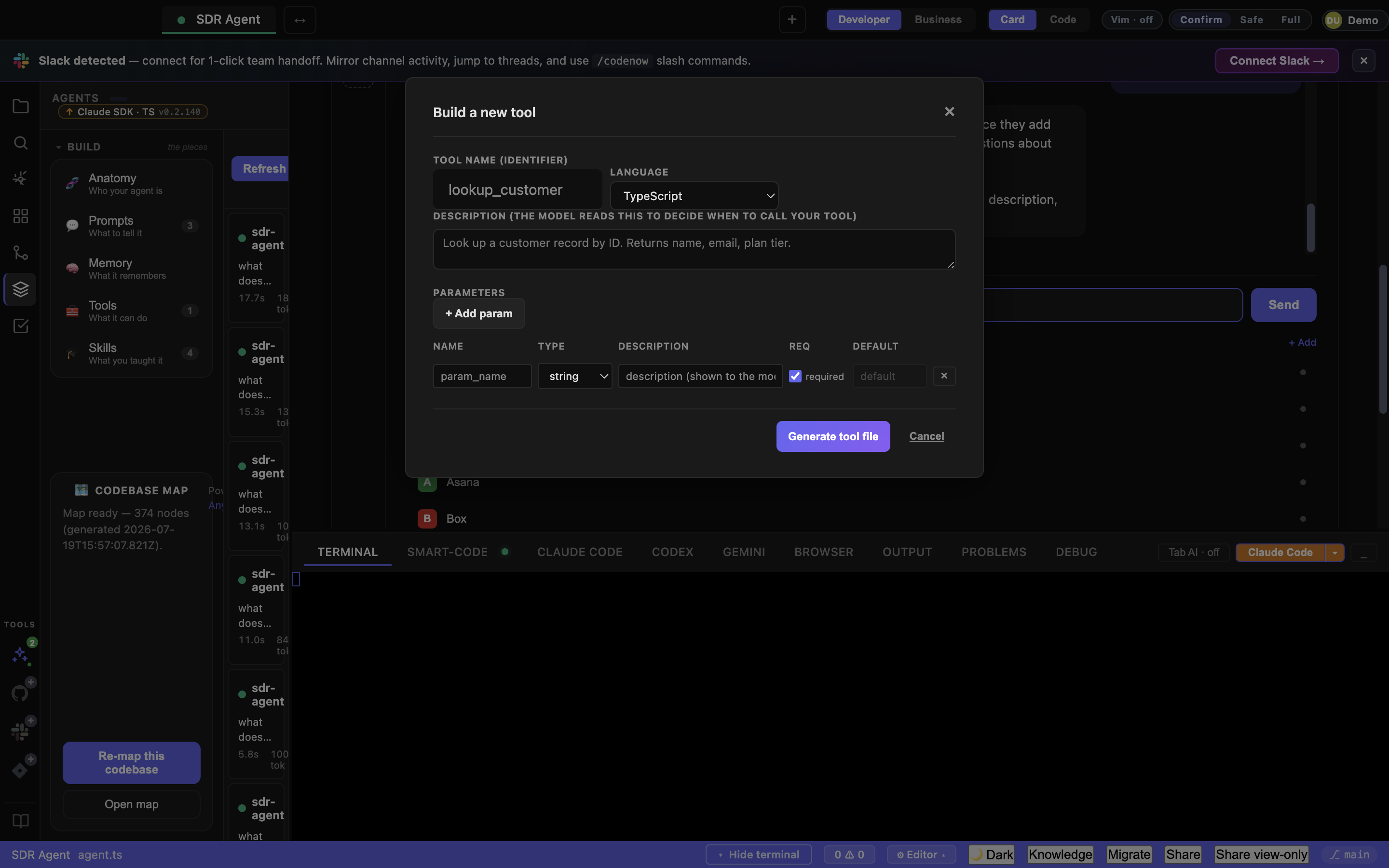
| Field | Purpose |
|---|---|
| Name | Tool symbol (snake_case). Becomes the function name |
| Description | What the tool does — model uses this to decide when to call |
| + Add param | Param name + type (string/number/boolean) + description |
| Generate | Writes tools/<name>.ts (or .py) with tool() + createSdkMcpServer() exports |
Describe → Build (default entry point)
The primary way to create an agent. A single “What should your agent do?” box + one Build button — type a plain-language description, click, and CodeNow drafts the agent, auto-picks a “Recommended for you” kit from your detected keys, scaffolds it, and lands you on a running agent. No kit picker, no jargon up front. The 9-step guided builder (kit choice, sub-agents, deploy targets, harness explainers) sits behind an “Advanced: build step by step” disclosure.
Scaffold Wizard modal (Advanced path)
The opt-in step-by-step builder — reach it via Advanced: build step by step or + Build new in the Publish tab.
| Step | What it does |
|---|---|
| Step 1: Pick a kit | Card grid: Claude Agent SDK (TS/Py) · Cursor SDK · Microsoft Agent Framework · Google ADK · empty · coming-soon stubs |
| Step 2: Details | Name + slug + description |
| Step 3: Result | List of files written; Read START_HERE.md first + Open agent.ts + Edit manifest buttons |
Hello Agent CTA
Lives on the Anatomy card when no manifest exists in the project. The “What should your agent do?” box + Build button is the default; Advanced: build step by step underneath opens the guided kit picker.
Settings modal (Cmd+,)
| Section | What it controls |
|---|---|
| Editor | Font size, family, tab size, word wrap |
| AI | Default model, API keys |
| Theme | Built-in or imported VS Code themes |
| Format | Format-on-save, autofix-on-save |
| Privacy | Telemetry opt-out |
9. Welcome / first-launch
Shown when no project is open.
| Element | What it does |
|---|---|
| Open Project Folder (primary CTA) | Native folder picker → adds the project tab |
| Start Claude Code | Spawns the AI agent in the new project |
| ▾ Switch Model | Pick a different AI model before starting |
10. Keyboard shortcut master list
See the dedicated keyboard shortcuts page for the full list. Highlights:
| Shortcut | Action |
|---|---|
Cmd+1–Cmd+9 | Switch project tab |
Cmd+P | Quick file open |
Cmd+Shift+F | Cross-project search |
Cmd+\\ | Toggle sidebar |
Ctrl+` | Toggle terminal |
Cmd+R | Start agent → switch to Test → focus chat (Agents panel) |
Esc | Close Replay viewer |
j / k / Space | Step / step / expand in Replay |
Cmd+Q | Quit (full restart needed for main.js/preload.js changes) |
Cmd+R (window-level) | Reload renderer (renderer-only changes after a git pull) |
Source
This page was generated from src/renderer/index.html in the CodeNow IDE source . 120+ clickable elements documented. PRs welcome — when CodeNow ships a new button, file an issue or open a PR against the wiki repo .