Pair programming
Two developers, one file, live cursors and edits — no screen-share. CodeNow’s pair-programming flow lets you invite a teammate by email, accept on their end, and then live-edit the same file together through a CRDT broadcast backed by Supabase Realtime.
This page walks the full flow from “I want to pair-program with Kapil” to “we’re typing in the same buffer.” Screenshots are taken from the real desktop UI; only the names (Demo / Kapil / Priya) are illustrative.
What pair programming actually is in CodeNow
A single button — Pair → — that:
- Starts a live CRDT session on the file you currently have open.
- Copies a paste-ready Slack/email blurb naming the project and the file.
- The teammate opens the same file in their CodeNow window, clicks Go live, and now you’re both editing the same buffer with cursors and presence.
It’s not screen-share. Each side runs Monaco locally; the CRDT keeps the text in sync. Network drops just queue and replay.
Prerequisites
- Both of you have CodeNow installed and are signed in.
- The project is shared — i.e. it has a Supabase record. The Share modal walks you through this on first click if it isn’t.
- The project has a GitHub URL set so your teammate can clone it. (Without that, they have membership but no copy of the code.)
Step-by-step
1. Open the Share modal
Click Share in the editor topbar (top-right, next to Share view-only). First time on a brand-new project you see the create-record pane:
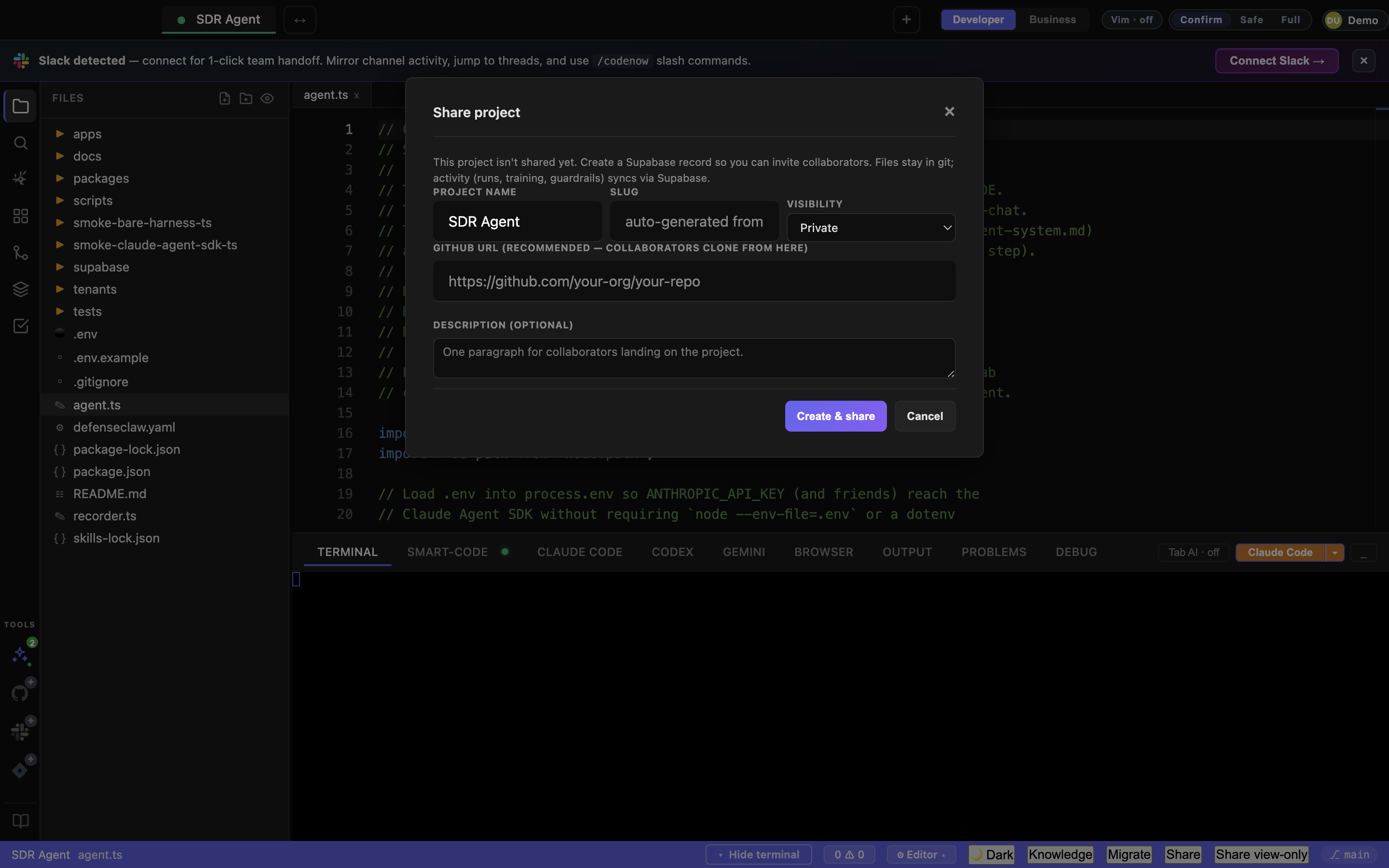
Fill in a name (auto-derived from the local folder), a GitHub URL (strongly recommended), and click Create & share. CodeNow creates the Supabase project record and links your local folder to it. From here on, the Share button opens the populated modal directly.
2. The populated Share modal
Once shared, every subsequent click on Share opens this:
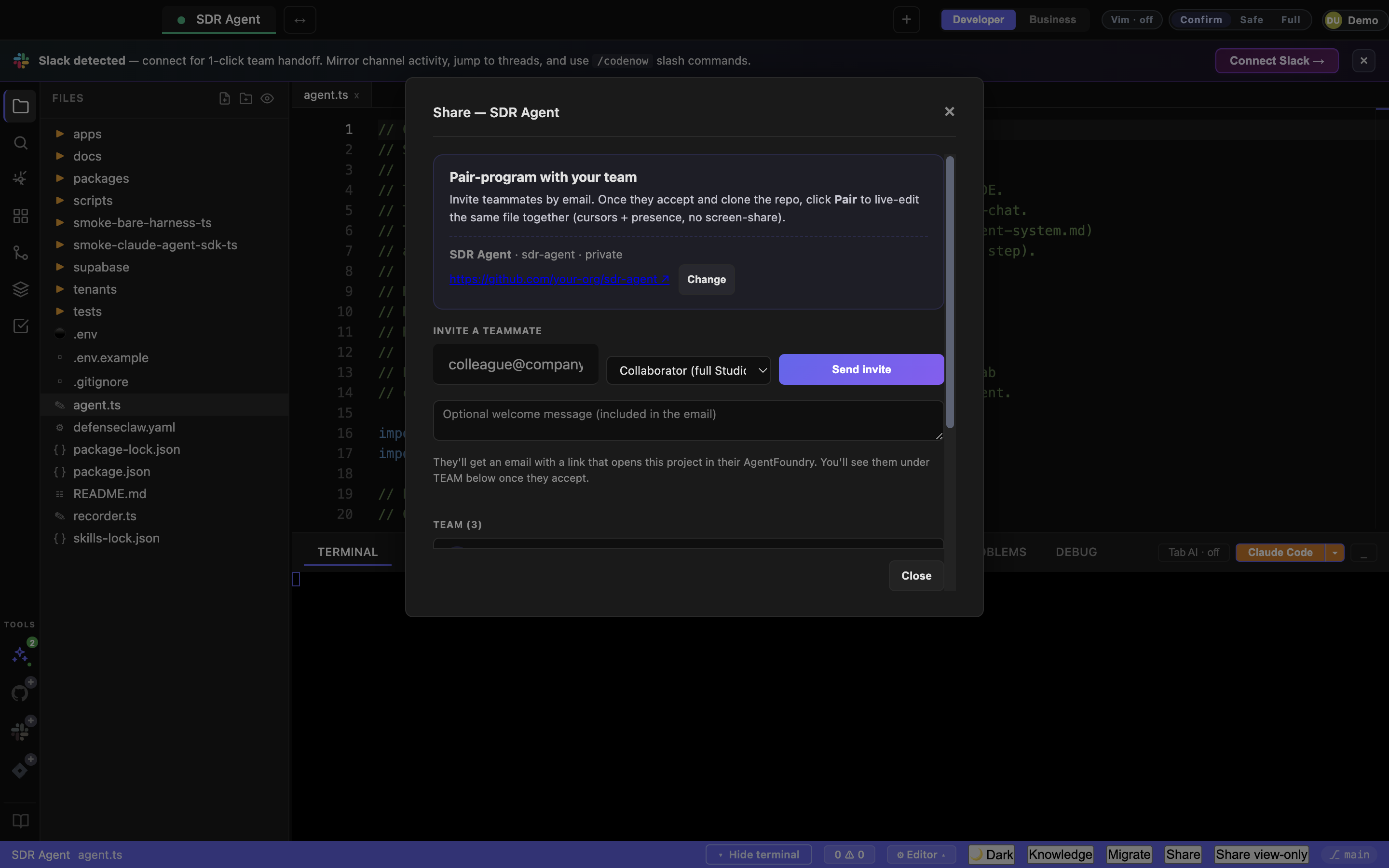
Three sections, one flow:
- Intro / Repo — explains what pair-programming is and links to the GitHub repo (or warns you it’s missing).
- Invite a teammate — email + role + Send invite + optional welcome message.
- Team — members who’ve accepted, each with a status pill and (for non-owners) a Pair → button.
- Pending — invitations that haven’t been accepted yet.
3. Set the GitHub URL (if you skipped it)
If the intro section shows ⚠ No GitHub URL set, click Set GitHub URL.
The repo line turns into an inline editor:

Paste the repo URL, hit Save. Now your teammate can clone it after they accept.
4. Invite a teammate
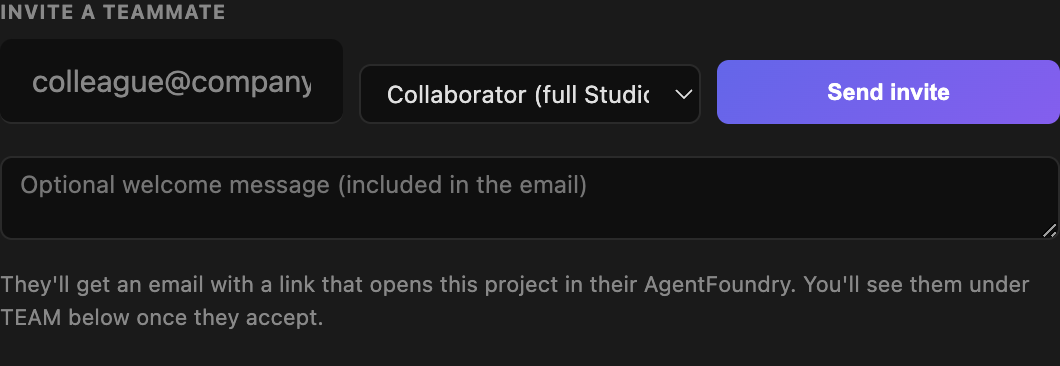
- Type their email.
- Pick a role (Viewer, Business, Collaborator, Admin).
- Optional welcome message.
- Send invite.
What happens server-side:
- A
project_invitationsrow is created in Supabase under your auth. - A transactional email is sent to that address via Resend with a link.
- The link is
codenow://join?token=<uuid>— on macOS / Windows / Linux with CodeNow installed, clicking the link opens the desktop app and the acceptance prompt. If they don’t have CodeNow yet, the email’s fallback URLhttps://codenow.pro/join?token=...walks them through download + sign in + accept.
The pending row appears immediately:

The yellow ✉ Email sent pill confirms the Resend call succeeded. You can:
- Resend — re-fire the email without creating a new invitation row.
- Copy link — grab the
codenow://join?token=...URL to paste into Slack / iMessage / however you talk to your teammate. - × — revoke the invitation. The link stops working immediately.
5. Your teammate accepts
In their email, they click the link. CodeNow opens (or they download + install, then click again). They see an accept prompt; one click later they’re a member.
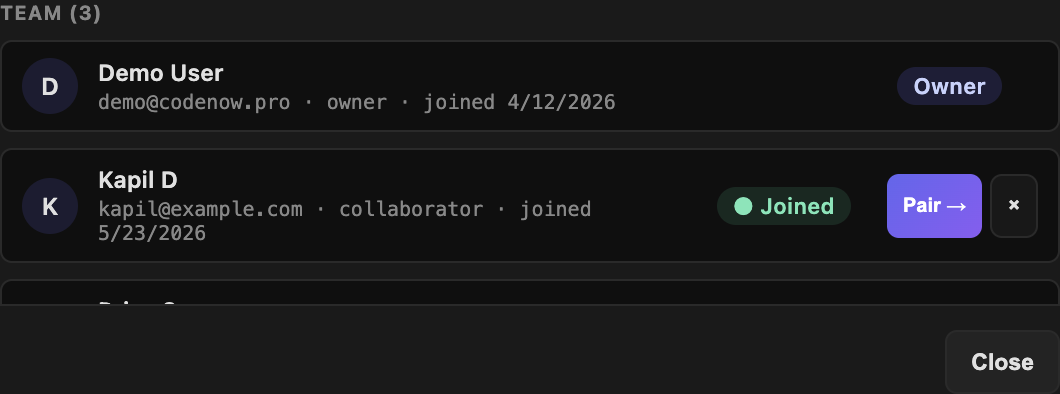
The pending row in your Share modal disappears and the new member shows up under TEAM with a green ● Joined pill:
6. Start the pair session
Open the file you want to pair on. Click Pair → next to your teammate’s name. Three things happen:
- The Share modal closes.
- A CRDT session starts on the active file — the Go live button in the editor topbar flips to Stop sharing and a presence pill shows how many peers are connected.
- A paste-ready blurb is copied to your clipboard, naming the project + file. Paste it into Slack so your teammate knows where to go.
The Go-live affordance lives next to the file tabs in the editor topbar. Before any live session:

Once you click Pair, your bar turns into:

7. Teammate joins the session
Your teammate opens the project locally (they need to have cloned it from the GitHub URL — that’s what the Set GitHub URL step was for). They open the same file you’re on, and click Go live in their own editor topbar.
Both editors are now connected through the same CRDT doc. Cursors appear, edits sync in real time, and the presence pill on each side updates.
8. End the session
Either side clicks Stop sharing in their editor topbar. The CRDT disconnects; local files are unchanged. The Share modal is unaffected — your teammate stays a member of the project until you remove them with the × button on their row.
Roles
| Role | Can edit | Can invite | Can remove others |
|---|---|---|---|
| Viewer | No | No | No |
| Business | No (skill / guardrail editing only) | No | No |
| Collaborator | Yes | No | No |
| Admin | Yes | Yes | Yes |
| Owner | Yes | Yes | Yes |
Roles are set per invitation and stored on the project_members row in
Supabase. Removing a member cuts their CodeNow access instantly, but does
not recall code they’ve already cloned — manage repo permissions through
GitHub / GitLab.
Behind the scenes
- Tables:
projects,project_members,project_invitationsin Supabase, RLS-protected. The invite token is a UUID — owning the token is the read credential for the public/api/collab/acceptendpoint. - Email: transactional via Resend, server-side from
/api/collab/email-invite. The desktop calls this endpoint right after the row insert; failures are best-effort and surface in the modal as “Email not sent — copy link manually.” - Acceptance:
codenow://join?token=...deep-link → renderer’sonCollabDeepLinklistener → accept prompt →POST /api/collab/accept→project_membersrow created,project_invitations.accepted_atset. - CRDT: Yjs document broadcast over a Supabase Realtime channel keyed by project ID + file path. y-monaco wires it to your Monaco editor.
- Single modal: as of v0.1.28 the Share button is the only invite UI; the old “Team members” modal was consolidated away. The same modal opens from the user-pill → Invite team and from the command palette (⌘P → Invite Teammates / Manage Team).
Troubleshooting
“Sign in again” panel in the Share modal.
Your access token expired. CodeNow silently retries with the refresh
token before showing this; if the refresh also fails, click Refresh
session to try once more, or Sign in again to do a full re-auth.
Teammate accepted but isn’t in TEAM.
Reload the modal. If they’re still missing, check the Pending section
— a re-accept on an already-accepted invite is a no-op, but if the
token URL was malformed they might never have hit the endpoint. Try
Resend to send a fresh link.
Pair → button does nothing.
You probably don’t have a file open, or you’re a Viewer. Open a file in
the editor, then re-click Pair from the Share modal.
Live edit appears one-sided.
Both sides need to click Go live on the same file. The CRDT is
keyed by { projectId, filePath } — different files mean different
sessions. The blurb that gets copied to your clipboard names the exact
file path; paste it to remove ambiguity.
Teammate can’t clone the repo.
The project has no GitHub URL set. From the Share modal, click
Set GitHub URL and paste the repo URL. They’ll need access to the
GitHub repo too — manage that in GitHub’s own permissions UI.